Why put photos in a PDF
A PDF keeps several pictures together in a fixed order, opens the same way on every device and is accepted by almost every upload form. That makes it the usual format for receipts, ID copies, handwritten notes, homework and photos of signed papers.
The JPG to PDF tool runs entirely in your browser. Your photos are read and assembled on your device, so nothing is uploaded, and the result has no watermark.
Convert photos to a PDF step by step
- 1
Open the converter
Go to JPG to PDF. Despite the name, it accepts JPG, PNG, HEIC, WebP, GIF, BMP and SVG files.
- 2
Add your photos
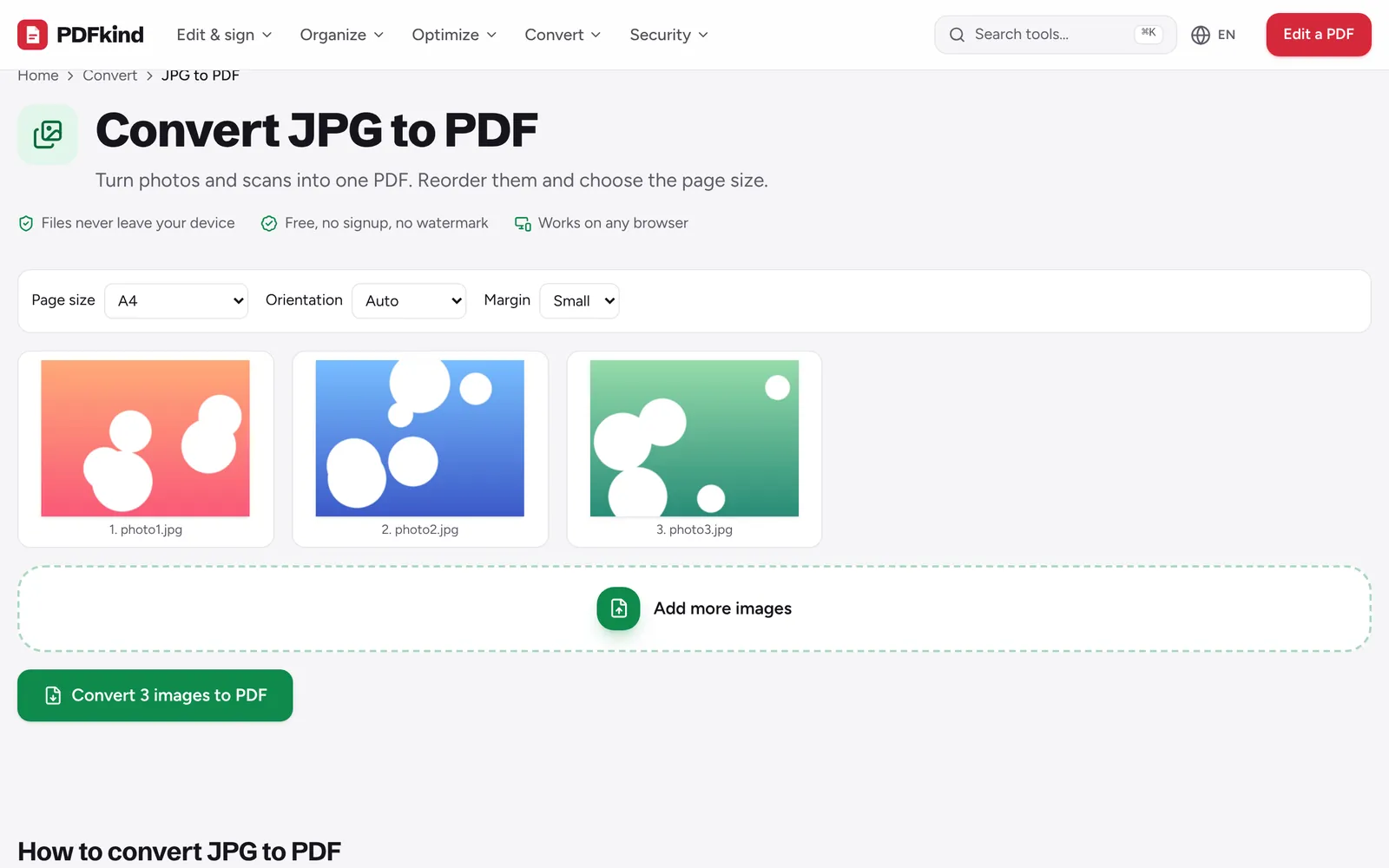
Tap or click Choose images or drop them here and select all the pictures at once. To add more later, use Add more images.
- 3
Put them in order
Each photo becomes one page, numbered under its thumbnail. Use Move left and Move right on a thumbnail, or drag thumbnails on a computer.
- 4
Fix sideways photos
Click Rotate on any thumbnail to turn it 90 degrees. Use Remove to drop a picture you added by mistake.
- 5
Choose the page layout
Set Page size to A4, US Letter or Same as image, then pick an Orientation and a Margin (None, Small or Large).
- 6
Create and download
Press Convert N images to PDF. When Your file is ready appears, rename the file if you like and press Download.
Choosing page size, orientation and margins
A4 and US Letter give you pages that print cleanly on standard paper. Each photo is scaled to fit inside the page and centered, so nothing is cropped. With Orientation set to Auto, wide photos get landscape pages and tall photos get portrait pages, which avoids tiny pictures on oversized white pages.
Same as image makes each page exactly the size of its photo (plus the margin), with no scaling up. Choose it when the PDF will only be viewed on screen, or when your photos have very different shapes.
A Small margin looks tidy when printed. Pick None for edge-to-edge pages, for example when the photo is already a cropped document.
Converting photos to PDF on iPhone and Android
The tool works in Safari, Chrome and other mobile browsers, with no app to install. When you tap the add button, your phone offers its photo library, the camera or your files. Select several photos in one go to save time.
iPhones save photos as HEIC by default. Most browsers other than Safari cannot display HEIC, so the tool converts each HEIC file to JPEG on your device before adding it (you will briefly see a Converting message). If you are starting from a folder of HEIC files on a computer, the HEIC to PDF page does the same thing with a hint written for iPhone photos.
Depending on your settings, iOS may hand the browser a JPG copy instead of the original HEIC. Either way the result is the same.
Keeping the PDF small enough to email
JPG and PNG photos are placed in the PDF without being re-compressed, so quality is preserved and the PDF is roughly the size of the photos combined. Ten modern phone photos can easily add up to 30 MB or more.
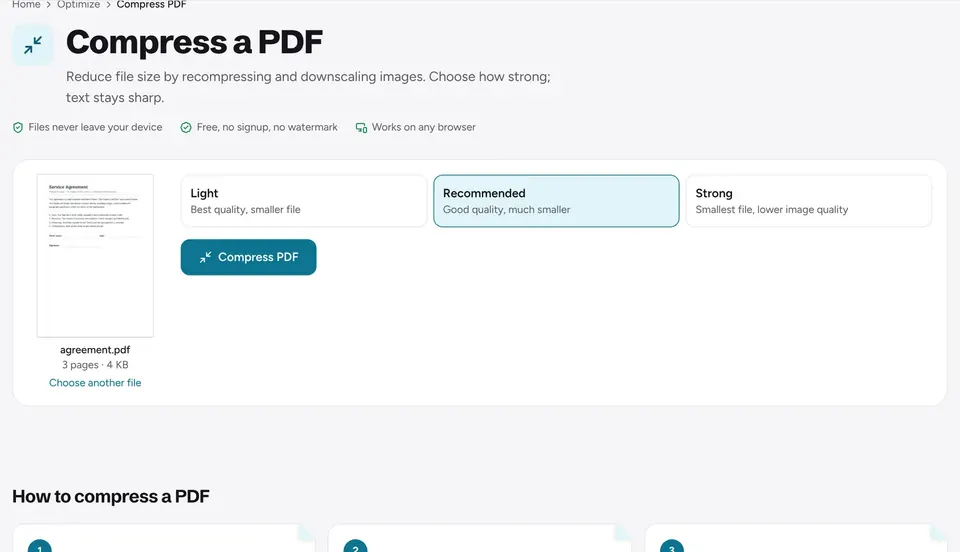
If an upload form or email rejects the file, run it through Compress PDF afterwards. The Recommended level shrinks photo-heavy PDFs a lot while keeping them readable. The guide to reducing PDF size explains which level to pick.
Adding photos to an existing PDF
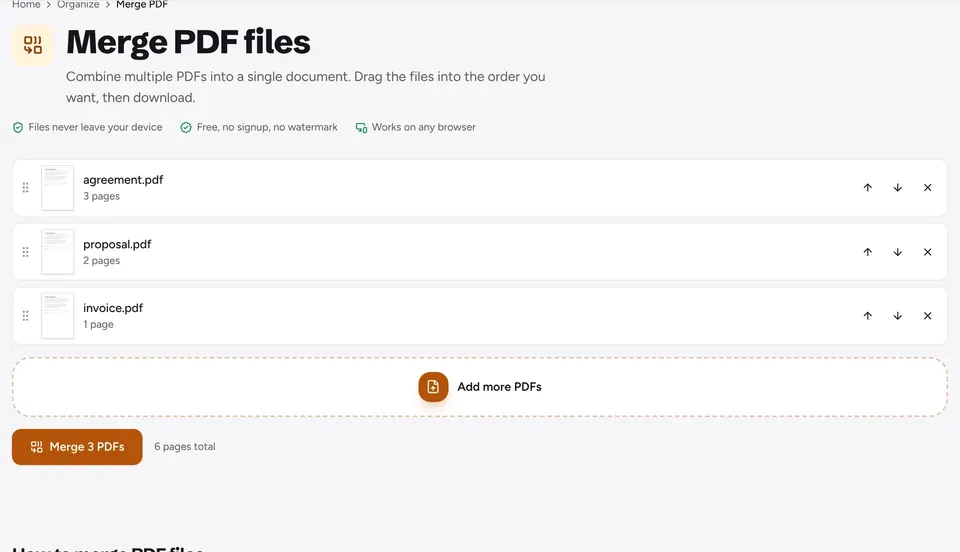
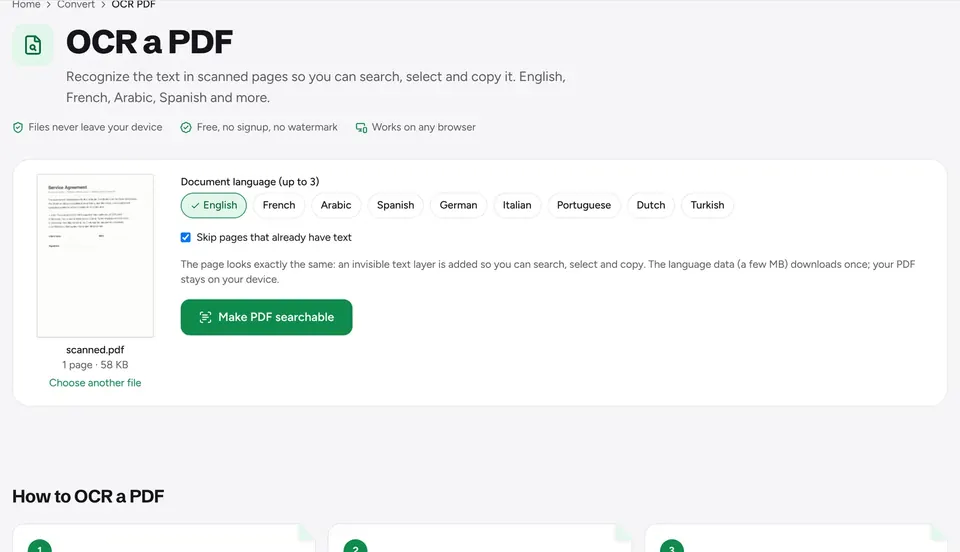
To attach pictures to a PDF you already have, convert the photos first, then join both files with Merge PDF. See how to merge PDFs for ordering tips. If you want a scanned page to be searchable, run OCR PDF on the result.
Frequently asked questions
Can I put several photos on one page?+
No. The converter always places one photo per page. If you need several pictures on one sheet, convert them first, then use the Pages per sheet tool to put 2, 4, 6 or 9 pages on each sheet.
Will my photos lose quality?+
JPG and PNG files that you do not rotate are embedded exactly as they are, with no quality loss. Rotated photos and other formats such as HEIC, WebP or GIF are re-encoded at high quality, which is usually invisible.
Is there a limit on the number of photos?+
There is no fixed limit. Everything happens in your browser's memory, so very large batches (hundreds of high-resolution photos) can be slow on older phones. If that happens, convert in a few batches and merge the PDFs.
Why does my iPhone photo show an error?+
A message saying the file could not be read as a HEIC photo usually means the file is damaged or is a format variant the browser cannot decode. Export the photo as JPG from the Photos app, or share it as Most Compatible, and add it again.
Are my photos uploaded anywhere?+
No. The photos are read and converted by your browser, and the PDF is created on your device. This matters for ID documents and personal pictures, which never pass through a server.
Ready to try it?
Open JPG to PDF and follow the steps above. Your file stays on your device.
- Files never leave your device
- Free, no signup, no watermark
- Works on any browser