Why you can’t edit text in a scanned PDF
When you scan or photograph a page, each page of the PDF is stored as a single image. To your eyes it is text; to the file it is a grid of pixels, just like a photo. There are no letters, words or fonts to select, which is why clicking the text does nothing and searching finds nothing.
To change that wording, the text first has to be recognized. Edit PDF can do it for you: it reads each line of the scan and replaces it with real text that you can edit like any other.
How to make scanned text editable
- 1
Turn on the scan option
Go to Edit PDF and, before opening your file, tick Make scanned text editable. Under Language of the text, keep the Latin-script option for English, French, Spanish and similar languages, or choose Arabic (with French or English).
- 2
Open the scanned PDF
Drop your file on the page or click choose a file. The document opens right away and a bar shows Scanning page 1 of 3… while the text is read. It takes a few seconds per page, and you can look around in the meantime.
- 3
Edit a line
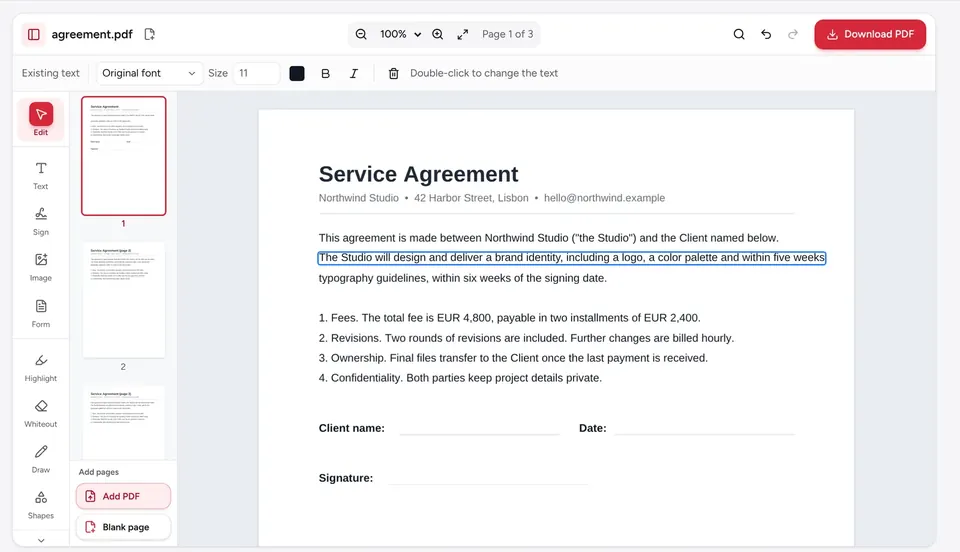
When the scan is done, double-click any line and type. Each line is now a text box placed over the original, with a matching font style, size and ink color, and the old pixels are covered in the color of the paper.
- 4
Download the result
Click Download PDF. Your changes are part of the file, and the recognized lines can be selected, searched and copied.
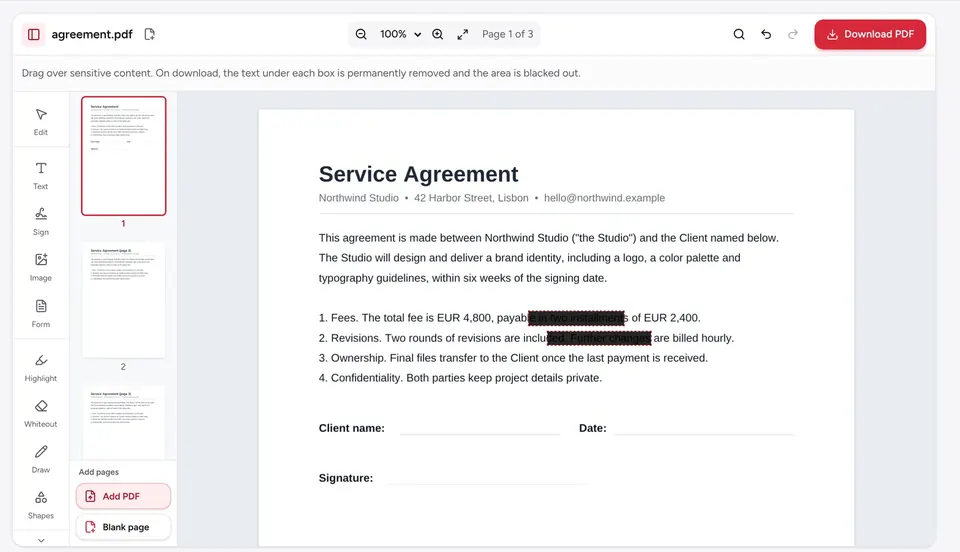
Lines that can’t be read reliably, such as handwriting, stamps or cramped table cells, are left as they are in the scan. For those, choose Whiteout in the tool rail, drag a box over the words, then add new text with Text.
Keep the scan as it is: make it searchable with OCR
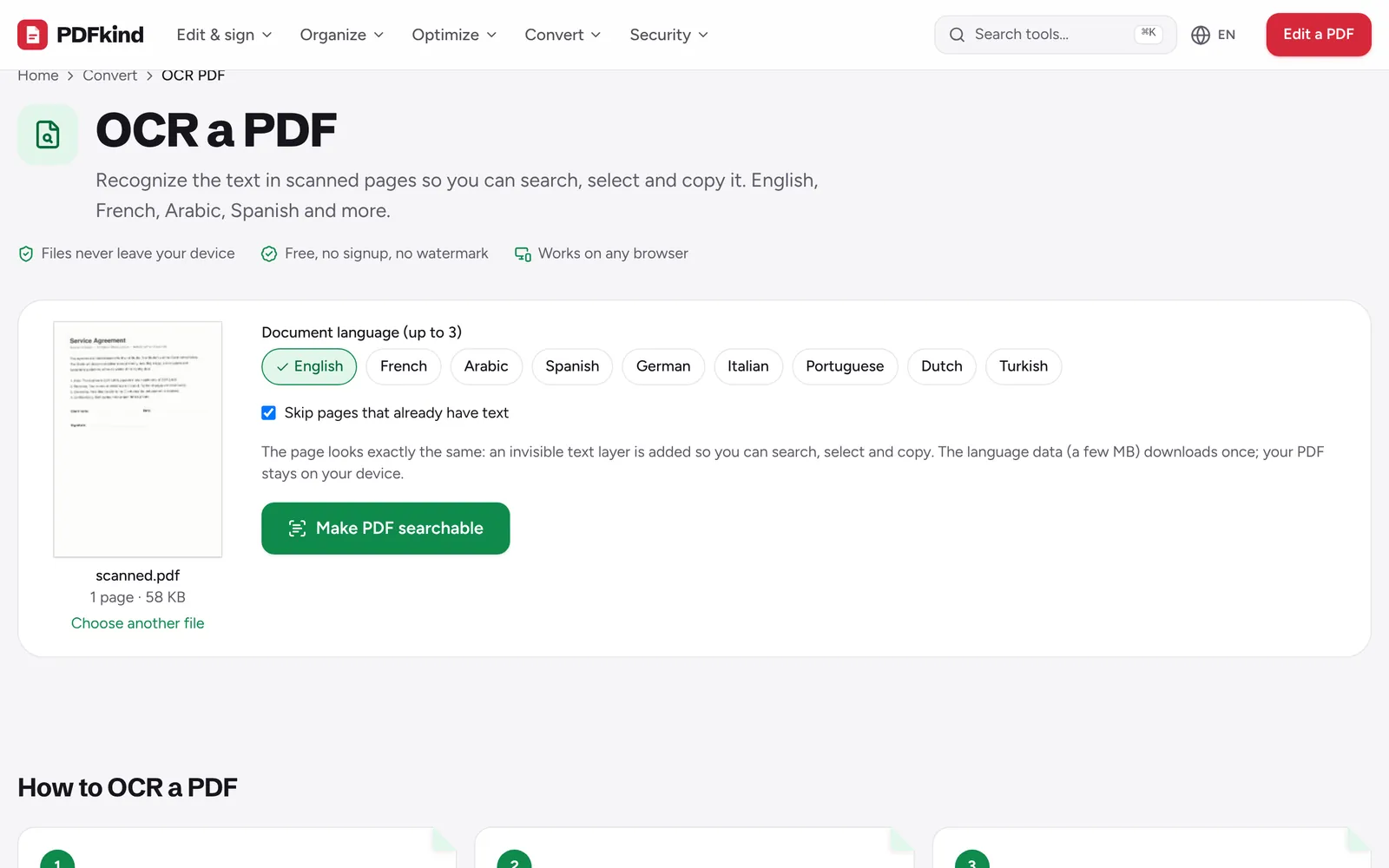
If you only need to search, select or copy the text and the page must stay exactly as scanned, use OCR PDF instead. It adds what it reads as an invisible text layer behind each page. The page looks the same, but you can now search it and extract its text with PDF to Text.
Pick the document languages under Document language (up to 3), leave Only add text that isn’t selectable yet ticked so lines the PDF already has as text are not added twice, and click Make PDF searchable.
Recognition runs in your browser in both tools. The OCR models (about 20 MB) download the first time, and your PDF stays on your device.
How to get better results
- Scan at a decent resolution. 300 DPI is a good target. Blurry phone photos and low-resolution faxes produce more mistakes.
- Fix the orientation first. Rotate sideways or upside-down pages with Rotate PDF before scanning the text.
- Use flat, evenly lit pages. On a phone photo with shadows, the covers behind edited lines follow one paper color and can show at the edges of a shadow.
- Expect weak results on handwriting, stamps, tables with heavy lines and very small print. Recognition is built for printed text.
Always check the recognized text before relying on it, especially names, numbers and dates.
When to retype the whole document instead
Editing scanned lines is ideal for a few changes: a date, a name, an amount, a sentence. If you need to rewrite whole pages, it is usually faster to run OCR, copy the text out with PDF to Text, correct it, and create a fresh document with Text to PDF. For more on changing digital PDFs, see how to edit a PDF.
Frequently asked questions
How can I tell if my PDF is scanned?+
Try to select a word or search for it. If nothing highlights and search finds nothing, the page is an image. In the editor, double-clicking the text also tells you when it is part of an image and offers to make it editable.
Can I edit the text of a scanned PDF directly?+
Yes. In Edit PDF, tick Make scanned text editable before opening the file. Each recognized line becomes a text box over the original that you can change, restyle or delete.
Will the edited text look like the original?+
Close to it. The editor picks a matching font style (serif or sans serif, regular or bold) and copies the size, slant and ink color of each line. It uses standard fonts, so an unusual typeface will look a little different.
Does OCR change how my document looks?+
No. OCR PDF adds the recognized text as an invisible layer behind the original image, so the page looks identical. Only searching, selecting and copying change.
Which languages are supported?+
Latin-script languages such as English, French, Spanish, German, Italian, Portuguese, Dutch and Turkish, plus Arabic, including documents that mix Arabic with French or English.
Is my scanned document uploaded?+
No. Recognition runs in your browser, and only the OCR models are downloaded the first time. That makes it suitable for contracts, IDs and other private scans.
Why is the recognized text full of mistakes?+
Accuracy depends on the scan. Low resolution, skewed or rotated pages, handwriting and the wrong language setting all cause errors. Rescan at around 300 DPI, fix the rotation and pick the right language, then try again.
Ready to try it?
Open OCR PDF and follow the steps above. Your file stays on your device.
- Files never leave your device
- Free, no signup, no watermark
- Works on any browser