Why some PDFs are so large
Text takes very little space in a PDF. A 50-page report with only text and simple charts is often well under 1 MB. What makes a PDF heavy is almost always images: scanned pages, phone photos of documents, and high-resolution pictures exported from design apps.
A single phone photo can be 3 to 5 MB, and a scanner set to 600 DPI produces pages far sharper than any screen or office printer needs. Compression works by saving those images again at a sensible resolution and quality. Text and vector graphics are left untouched, so they stay perfectly sharp.
Compress a PDF step by step
- 1
Open the compressor
Go to Compress PDF. It works the same on a computer, iPhone or Android.
- 2
Add your PDF
Click Choose a PDF or drop it here and pick your file, or drag it onto the page. The file is read by your browser and never uploaded.
- 3
Pick a compression level
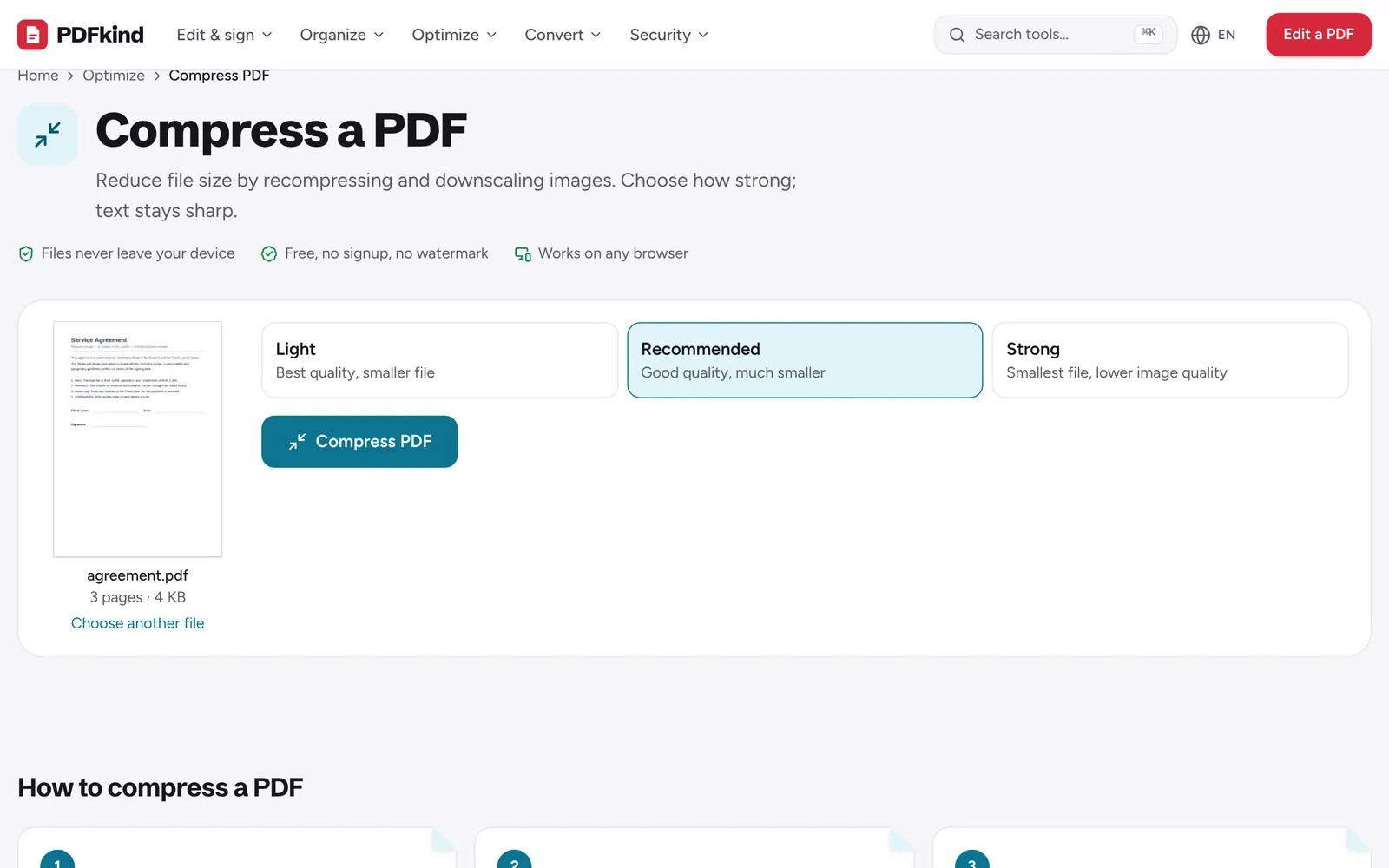
Choose Light, Recommended or Strong. Start with Recommended, which keeps good quality and usually makes the file much smaller.
- 4
Compress the file
Click Compress PDF. Large scans show progress as each image is optimized, then you see the size before and after, for example 18.4 MB → 3.1 MB (83% smaller).
- 5
Download the smaller PDF
In the Your file is ready panel, keep or change the File name (it ends in -compressed by default) and click Download.
- 6
Check the result
Open the downloaded file and zoom in on a photo or scanned page. If it still looks good and you need a smaller file, try again with Strong.
Which compression level to choose
- Light: best quality, smaller file. Images keep enough detail for printing. Use it for brochures, portfolios and documents you will print.
- Recommended: good quality, much smaller. Fine for reading on screen and normal office printing. The right choice for most emails and uploads.
- Strong: smallest file, lower image quality. Photos become noticeably softer, but scanned text stays readable. Use it when you must get under a strict limit.
Compression is a trade-off: smaller images mean less detail. If a scan contains small print, such as the fine print of a contract, check it after using Strong before you send it.
Fit Gmail, Outlook and upload portal limits
Gmail accepts attachments up to 25 MB per email, and Outlook up to 20 MB. Above that, Gmail turns the file into a Google Drive link, and Outlook may refuse to send it or ask you to share it through OneDrive.
Leave some margin under the limit. Email attachments are encoded for sending, which makes them roughly a third larger, and the limit covers all attachments in the message, not just one file. Government, university and job application portals are often stricter, with caps of 2, 5 or 10 MB per document.
When compression is not enough
PDFs that contain mostly text, or that were already compressed by the app that created them, may only shrink by a few percent. In that case, change what is in the file rather than how it is stored.
- Remove pages you do not need with Delete PDF pages, such as blank backs of scanned sheets or long appendices.
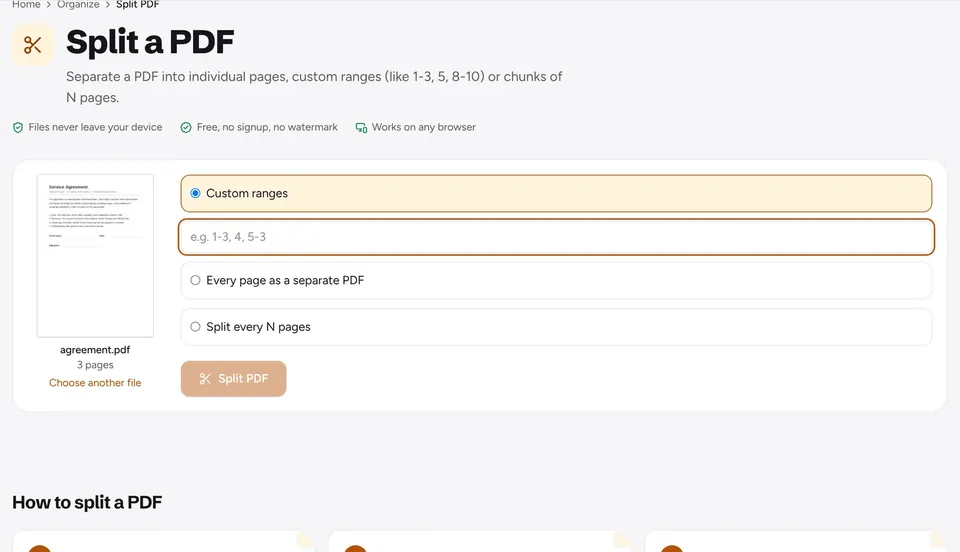
- Send the document in parts. The guide on splitting a PDF shows how to cut it into several smaller files.
- Rescan at a lower setting. 200 to 300 DPI is plenty for documents, and grayscale scans are smaller than color ones.
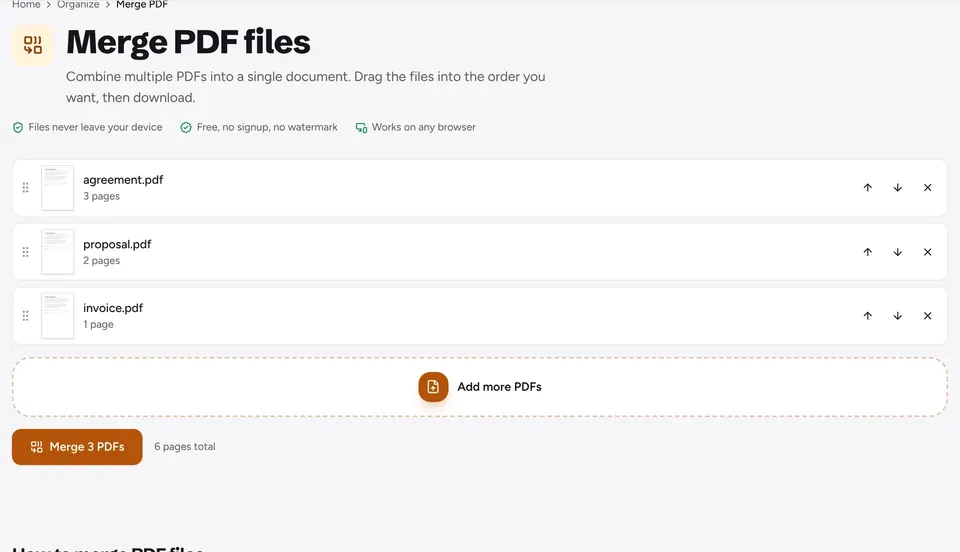
- If you combine many files, compress the result after merging. See how to merge PDF files.
If the PDF is password-protected, unlock it first with Unlock PDF, compress it, then add the password back with Protect PDF if needed.
Frequently asked questions
How much smaller will my PDF get?+
It depends on what the file contains. Scans and PDFs full of photos often shrink by 50 to 90 percent. Text-only PDFs are usually small already and may barely change.
Will compression make my text blurry?+
No. Only images inside the PDF are recompressed. Real text and vector graphics such as charts and logos are left exactly as they are, so they stay sharp at any zoom level. Scanned pages are images, though, so their text can get softer at Strong.
How do I get a PDF under 25 MB for Gmail?+
Compress it with Recommended and check the size shown after compressing. Aim for a few megabytes under 25 MB, since sending adds overhead. If it is still too large, try Strong, remove unneeded pages, or split it into two emails.
Can I compress a PDF on my phone?+
Yes. Open Compress PDF in Safari or Chrome, choose the file from Files or Downloads, and compress it there. The smaller copy is saved to your Downloads folder, ready to attach to an email.
Is it safe to compress confidential documents?+
Yes. The PDF is processed in your browser on your own device and is never uploaded to a server. It is also free, with no signup and no watermark added to the result.
Ready to try it?
Open Compress PDF and follow the steps above. Your file stays on your device.
- Files never leave your device
- Free, no signup, no watermark
- Works on any browser