What you need before merging PDFs
You need two or more PDF files saved on your device and a modern browser. Nothing to install and no account to create. The Merge PDF tool runs entirely in your browser, so your files are never uploaded, which also makes large files merge quickly.
If one of the files asks for a password when you open it, unlock it first with Unlock PDF. A password-protected file can't be merged, and the tool will tell you which one is locked.
How to combine PDFs into one file
- 1
Open the Merge PDF tool
Go to Merge PDF. The page works the same in Chrome, Edge, Firefox and Safari, on desktop or mobile.
- 2
Add your files
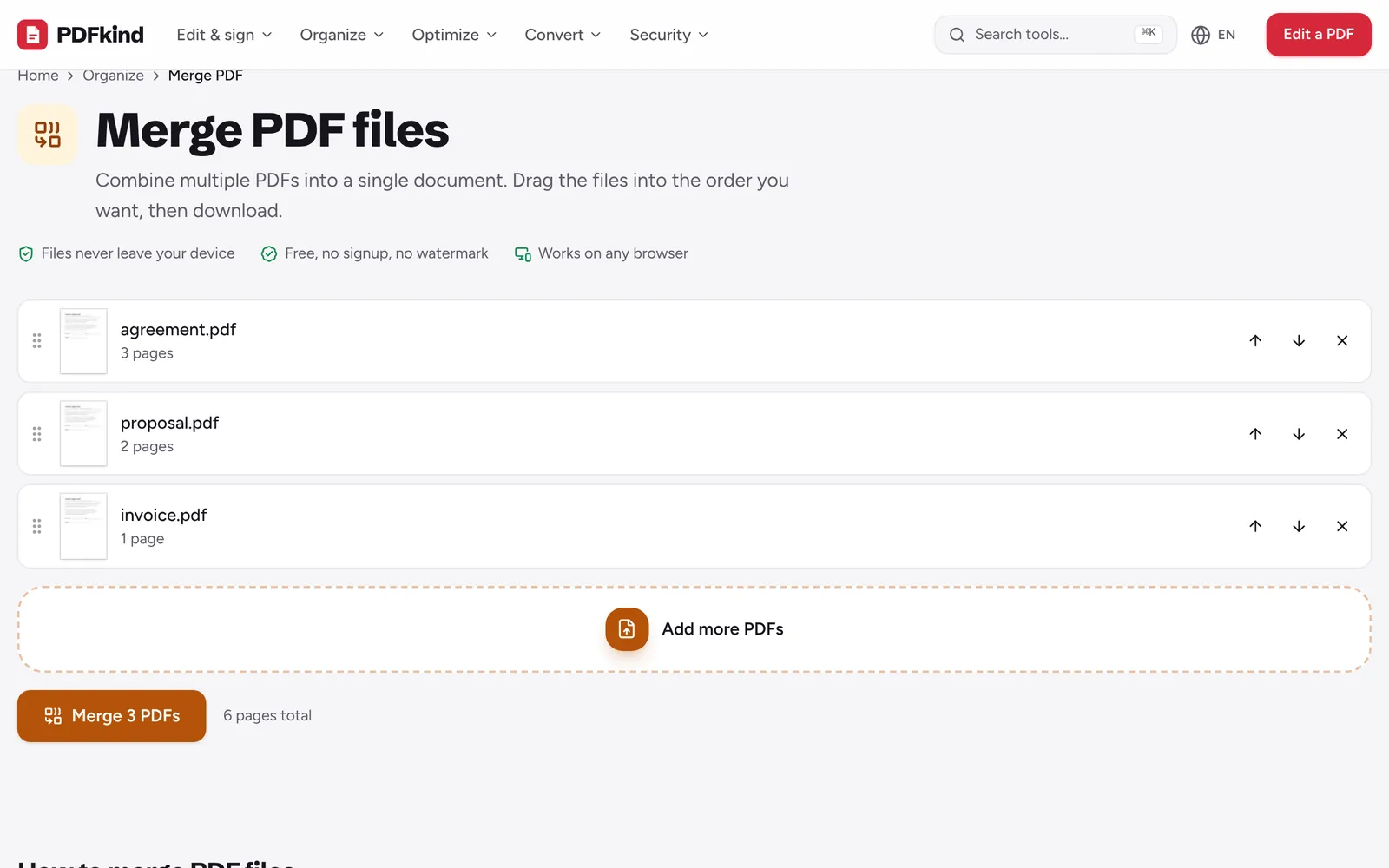
Click Choose PDF files or drop them here and select two or more PDFs, or drag them onto the box. Each file appears in a list with a preview of its first page and its page count.
- 3
Add any missing files
Click Add more PDFs to bring in more documents at any point. They are added to the end of the list.
- 4
Put the files in order
Drag a file by its grip handle on the left, or use the Move up and Move down arrows on the right. The order in the list is the order of the final document.
- 5
Remove what you don’t need
Click the Remove button (the X) next to any file you added by mistake. The running total under the list shows how many pages the merged PDF will have.
- 6
Merge and download
Click Merge 3 PDFs (the number matches your list). The combined file downloads as merged.pdf, ready to rename and send.
The merge button stays disabled until you have at least two files, and the page reminds you to add at least one more file if you only added one.
How to reorder or remove individual pages after merging
Merge PDF works at the file level: each document is added whole, in the order of the list. To move single pages, delete a cover sheet or rotate a sideways scan, open the merged file in Organize PDF. Drag pages to reorder them, and hover a page to rotate, duplicate, delete it or insert a blank page.
If you also want to change content, open the merged file in Edit PDF instead. Its page thumbnails sidebar has Move up, Move down, Rotate left, Rotate right and Delete page, and the Add PDF button at the bottom inserts the pages of another PDF after the current page. That is a handy way to slot one document into the middle of another.
Merging PDFs on iPhone and Android
On a phone, tap Choose PDF files or drop them here and pick your files from the Files app (iPhone) or your file manager or Downloads (Android). You can usually select several files at once.
Dragging items in a list is unreliable on touch screens, so use the Move up and Move down arrows to set the order. When you tap the merge button, the file goes to your browser’s downloads (on iPhone, Safari puts it in the Downloads folder of the Files app).
Quality, file size and limits
Pages are copied as they are. Text stays selectable, images keep their original quality and nothing is re-compressed, so the merged file is roughly the sum of the originals.
That can make the result too large for an email or an upload form. If so, run it through Compress PDF afterwards; the guide on how to reduce PDF size explains which level to pick.
Frequently asked questions
How many PDFs can I merge at once?+
There is no fixed limit on files or pages. The tool runs in your browser, so the limit is your device’s memory. Most computers handle hundreds of pages without trouble; on a phone, very large scans are best merged in smaller batches.
Will merging reduce the quality of my PDF?+
No. Pages are copied without being re-rendered, so text, fonts, images and links stay exactly as they were. If you need a smaller file, compress it as a separate step and choose the level yourself.
Can I merge a password-protected PDF?+
Not directly. A file that needs a password to open can't be read until it is unlocked. Use Unlock PDF with the password you already have, then add the unlocked copy to the merge list.
Does the merged PDF keep bookmarks and form fields?+
Page content and links are copied, but document-level extras are not: the bookmarks of the original files are not rebuilt, and fillable fields may stop working. If one of your files is a form, fill it in and flatten it first, so the answers become regular page content before you merge.
Are my files uploaded anywhere?+
No. The files are read and combined inside your browser and the result is saved straight to your device. Nothing is sent to a server, and there is no watermark on the merged PDF.
Ready to try it?
Open Merge PDF and follow the steps above. Your file stays on your device.
- Files never leave your device
- Free, no signup, no watermark
- Works on any browser