What you can edit in a PDF
A PDF is built to look the same everywhere, so it does not store text as paragraphs the way a word processor does. Each line is placed at a fixed position on the page. That is why most free tools only let you paste a new box on top of the old text.
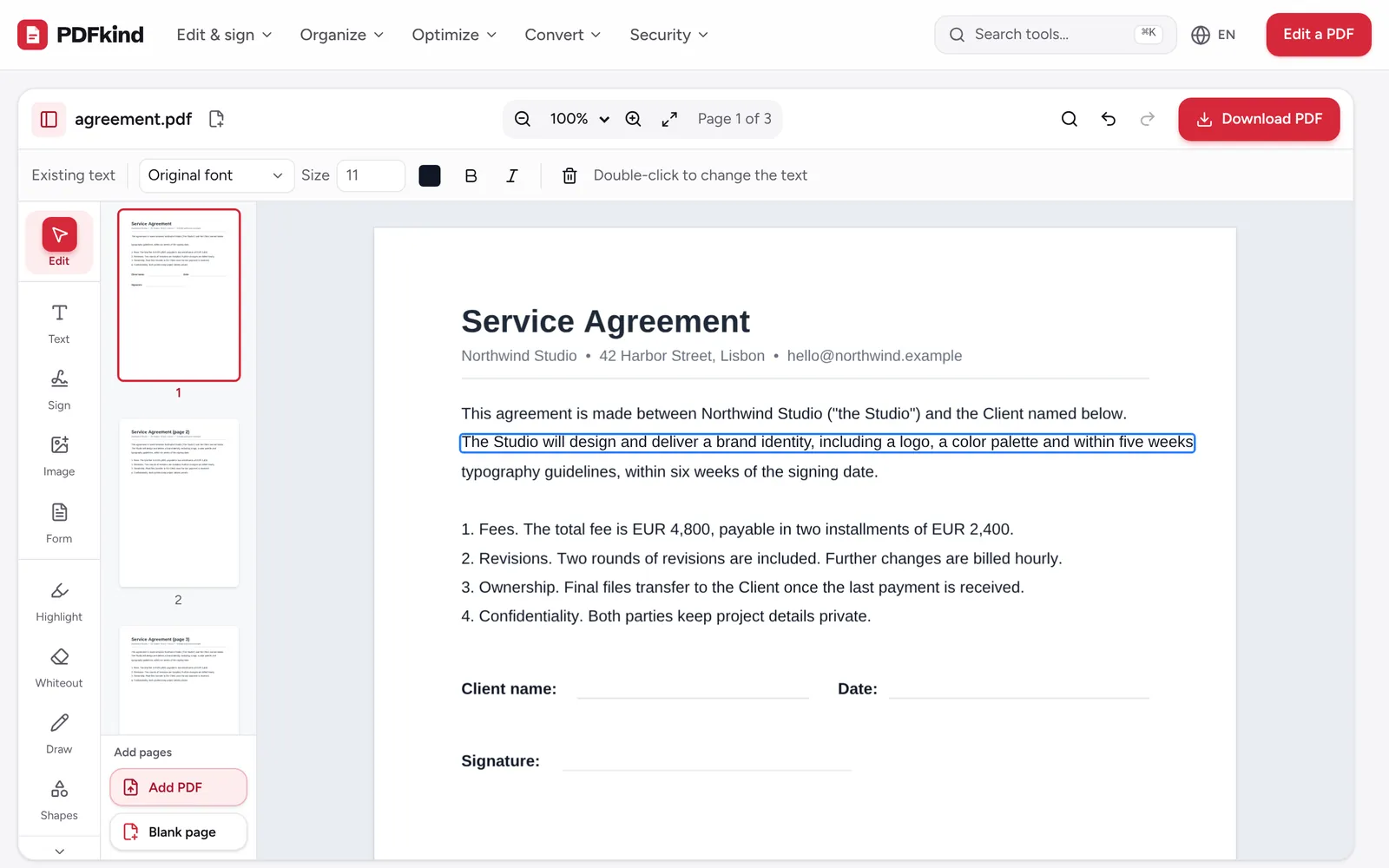
The PDF editor edits the original lines instead. You double-click a line, type, and the original font, size and color are kept whenever the font contains the characters you type. Around that you can add new text, images, links, signatures, highlights and shapes.
Everything runs in your browser. Your PDF is never uploaded, so you can edit contracts, invoices and personal documents without sending them to a server.
Edit a PDF step by step
- 1
Open your PDF
Go to the Edit PDF page and drop your file on the page, or click choose a file to pick it from your device. The pages appear in the middle with the tool rail on the left.
- 2
Change existing text
With Edit (Select & edit text) active in the tool rail, double-click any line and type your change. Click outside the line when you are done.
- 3
Add new text
Pick Text in the tool rail and click where the text should go. Set the Font, Size, Text color and Bold or Italic in the context bar above the page.
- 4
Insert an image
Pick Image and select a PNG, JPG, WebP, GIF or SVG file (click Choose image… if the file window does not open). Drag the image into place and pull a corner to resize it.
- 5
Add a link
Pick Link and drag over the area that should be clickable. Type a web address or email in the Link to field and use Test to check it.
- 6
Download the edited PDF
Click Download PDF in the top bar. In the Your file is ready panel, rename the file under File name if you like, then click Download.
Change fonts, colors and layout of text
When you select a line or a text box, the context bar shows its options. Besides font, size and color you get alignment, Underline and Strikethrough. Under More text options you can set Letter spacing, Line height, and a background or border box.
The font list includes standard, serif, sans serif, monospace, handwriting and Arabic fonts. If you edit an existing line and the original font cannot show a character you typed (an accented letter missing from a subset font, for example), pick a font from the list so every character displays correctly.
To move text, click it once and drag. Shift-click or drag a box around several objects to select them together, then use Align to page or the arrange options to line them up.
Add images, logos and clickable links to a PDF
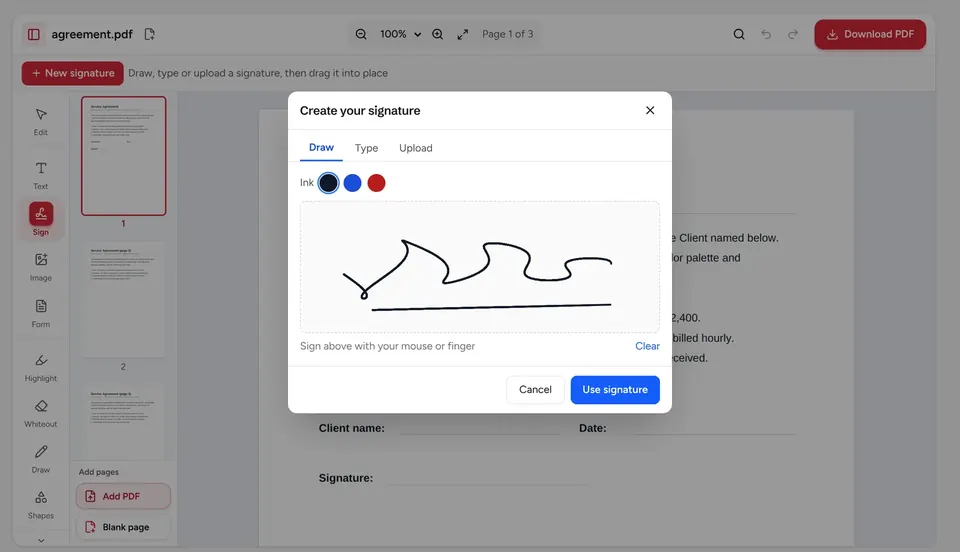
Images are useful for logos, photos, stamps and scanned signatures. After you place one, you can change its Opacity, rotate it, and stretch it freely by shift-dragging a corner. Use Bring to front or Send to back when it overlaps other content.
Links work in any PDF reader. You can link to a website (type example.com, the address is completed for you) or to an email address so the reader opens a new message. A link is an invisible clickable area, so place it over text or a button that tells the reader what to click.
If you only need one of these tasks, the dedicated pages open the editor with the right tool ready: Add text to PDF, Add image to PDF and Add link to PDF.
Why some text cannot be edited
If you double-click a line and see the message that the text is part of an image, the page is a scan or a photo. There is no real text in it, only pixels that look like letters, so there is nothing to retype.
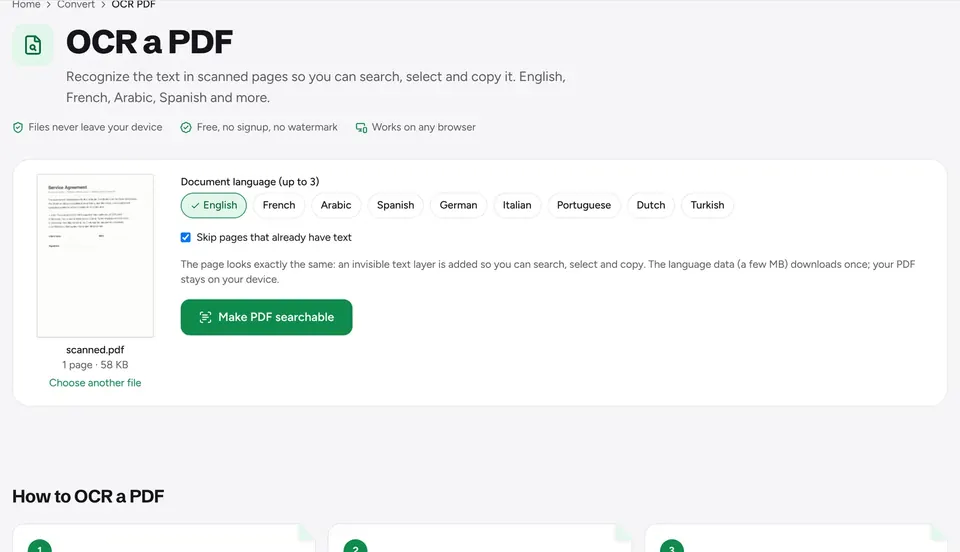
For a small fix, click Whiteout in that message to cover the old text, then click Add text and type the new version on top. For larger changes, run OCR first to make the text searchable. The guide on editing a scanned PDF covers both approaches in detail.
Edit a PDF on a phone and pick up where you left off
The editor works in Safari and Chrome on iPhone and Android. Tap to select, double-tap a line to edit it, and drag with your finger to move objects. A computer is more comfortable for long edits, but quick fixes such as a date or a name work well on a phone.
Your work is saved automatically in your browser on this device. If you close the tab or refresh by accident, reopen the editor and click Continue editing under Continue where you left off. Click Discard to start fresh instead.
Frequently asked questions
Can I edit a PDF for free without a watermark?+
Yes. Editing and downloading are free, with no signup and no watermark added to your file. The site is supported by ads, not by locking features behind a paid plan.
Will my edits keep the original font?+
When you change an existing line, the original font, size and color are reused whenever the font contains the characters you type. Many PDFs embed only the letters they use, so a new character may need a different font. In that case pick a close match from the Font list.
Can I edit a password-protected PDF?+
Not directly. If the PDF needs a password to open, the editor asks you to unlock it first. Use Unlock PDF with the password, then open the unlocked copy in the editor.
Can I add, delete or reorder pages while editing?+
Yes. Open the page thumbnails with Toggle page thumbnails in the top bar. From there you can rotate, duplicate, delete or move pages, insert a blank page, or use Add PDF to insert pages from another file.
Is my PDF uploaded anywhere?+
No. The file is opened and saved by your browser, on your device. Autosaved work is also stored only in your browser, and you can remove it with Discard.
Ready to try it?
Open Edit PDF and follow the steps above. Your file stays on your device.
- Files never leave your device
- Free, no signup, no watermark
- Works on any browser