Why a black box or highlight is not redaction
Drawing a black rectangle over a name, or highlighting it in black, only adds a layer on top. The original text is still in the file underneath. Anyone can select it and paste it into a text editor, find it with search, or move the box away in a PDF editor. Court filings and government reports have leaked exactly this way.
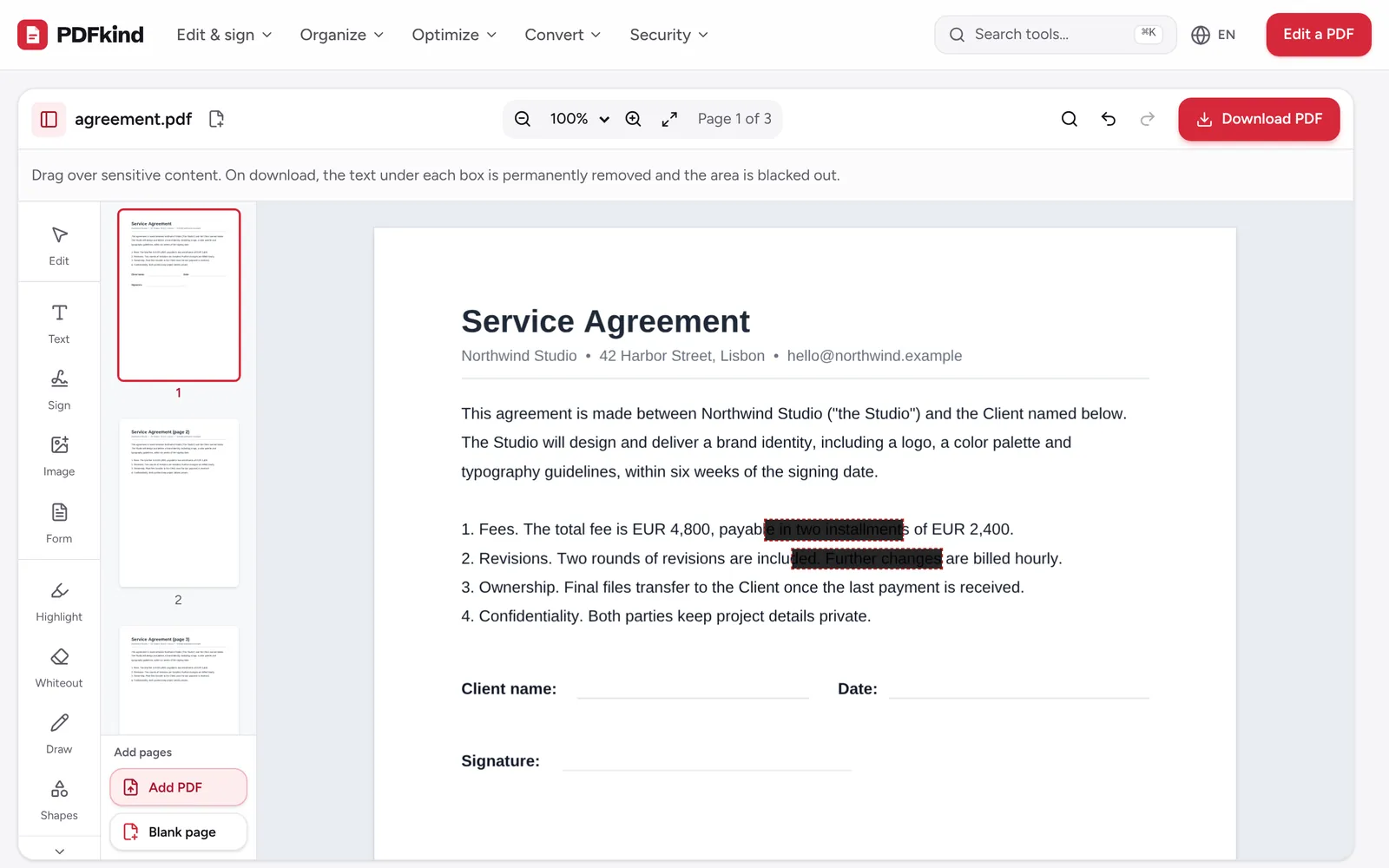
Real redaction deletes the content itself. In the Redact PDF tool, when you download, the text characters under each box are removed from the page and the covered pixels of any image are painted black. What remains is a black area with nothing behind it.
Redact a PDF step by step
- 1
Open the PDF
Go to Redact PDF and drop your file, or choose a file from your device. The editor opens with the Redact tool already selected.
- 2
Draw over sensitive content
Drag a box over each name, number, signature or photo you want removed. The tool stays active, so you can draw box after box, on any page.
- 3
Cover every occurrence
Use Find & replace (Ctrl+F) in the top bar to search for a name or number and jump to each match, then draw a box over it.
- 4
Adjust or remove boxes
Click a box to select it, then drag its handles to resize it. Press Delete (Del) or use Undo (Ctrl+Z) to remove one you drew by mistake.
- 5
Download the redacted PDF
Press Download PDF. This is the moment the content under the boxes is permanently removed. Then rename the file and press Download on the Your file is ready screen.
- 6
Check the result
Open the new file, try to select or search for the redacted words, and confirm nothing comes up. The section below explains a quick way to check.
What gets removed, and what to watch for
- Text under a box is deleted character by character. The surrounding text keeps its position, so the layout does not shift.
- Images, including scanned pages and photos, have the covered pixels painted black and are saved again. The original image data under the box is not kept.
- Lines and drawn shapes under a box are covered by the black area.
Some information lives outside the page content. Filled-in form fields and comments are separate layers that a redaction box does not touch. If a form field holds something private, clear it with the editor's Form tool first. If the PDF has sticky-note comments, check that none of them repeat what you are hiding.
How to check that a PDF is properly redacted
Never send a redacted document without checking it. The quickest test is PDF to Text: open the redacted file there and search the extracted text for the name or number you removed. If it does not appear, the text is gone.
You can also open the file in any PDF reader, press Ctrl+F (Cmd+F on a Mac) and search for the redacted words, or try to select and copy the black area. Nothing should be selectable there.
Remove hidden metadata too
A PDF also stores document properties: often the author's name, a company, the software used, creation dates and a title that may repeat the confidential subject. These are invisible on the page and redaction boxes do not reach them.
After redacting, open the file in Remove metadata. It shows what is stored, and Remove all metadata strips the title, author, subject, keywords, software and dates (including XMP data) without changing the pages.
Why it matters where the redaction happens
Documents that need redaction are, by definition, the ones you should not upload to a stranger's server. PDFkind runs the whole process in your browser: the original, the boxes and the redacted copy stay on your device. It works on Windows, macOS, Linux, Android and iPhone, with no account. For other changes before you share, see how to edit a PDF.
Frequently asked questions
Can redacted text be recovered from the PDF?+
No. When you download, the characters under each box are deleted from the page content, not hidden. Copying, searching or removing the black box reveals nothing, because there is no text left there.
Does redaction work on scanned PDFs?+
Yes. A scanned page is an image, and the pixels under each redaction box are painted black and saved again. If the scan also has an invisible OCR text layer, that text under the box is removed as well.
What is the difference between Redact and Whiteout?+
Whiteout paints a box in the page color so you can type over it, but the content underneath stays in the file. Redact removes the text and image pixels under the box and leaves a black area. Use Whiteout for corrections and Redact for anything confidential.
Can I redact the same word on every page automatically?+
There is no automatic search-and-redact. Use Find & replace to jump to each match, then draw a box over it. This keeps you in control of exactly what is removed.
Can I change the black color of the redaction boxes?+
No. Redaction boxes are always black, which is the standard look readers expect for removed information.
Are my documents uploaded when I redact them?+
No. Opening, redacting and saving all happen in your browser, so the confidential content never leaves your device.
Ready to try it?
Open Redact PDF and follow the steps above. Your file stays on your device.
- Files never leave your device
- Free, no signup, no watermark
- Works on any browser