Fillable vs non-fillable PDF forms
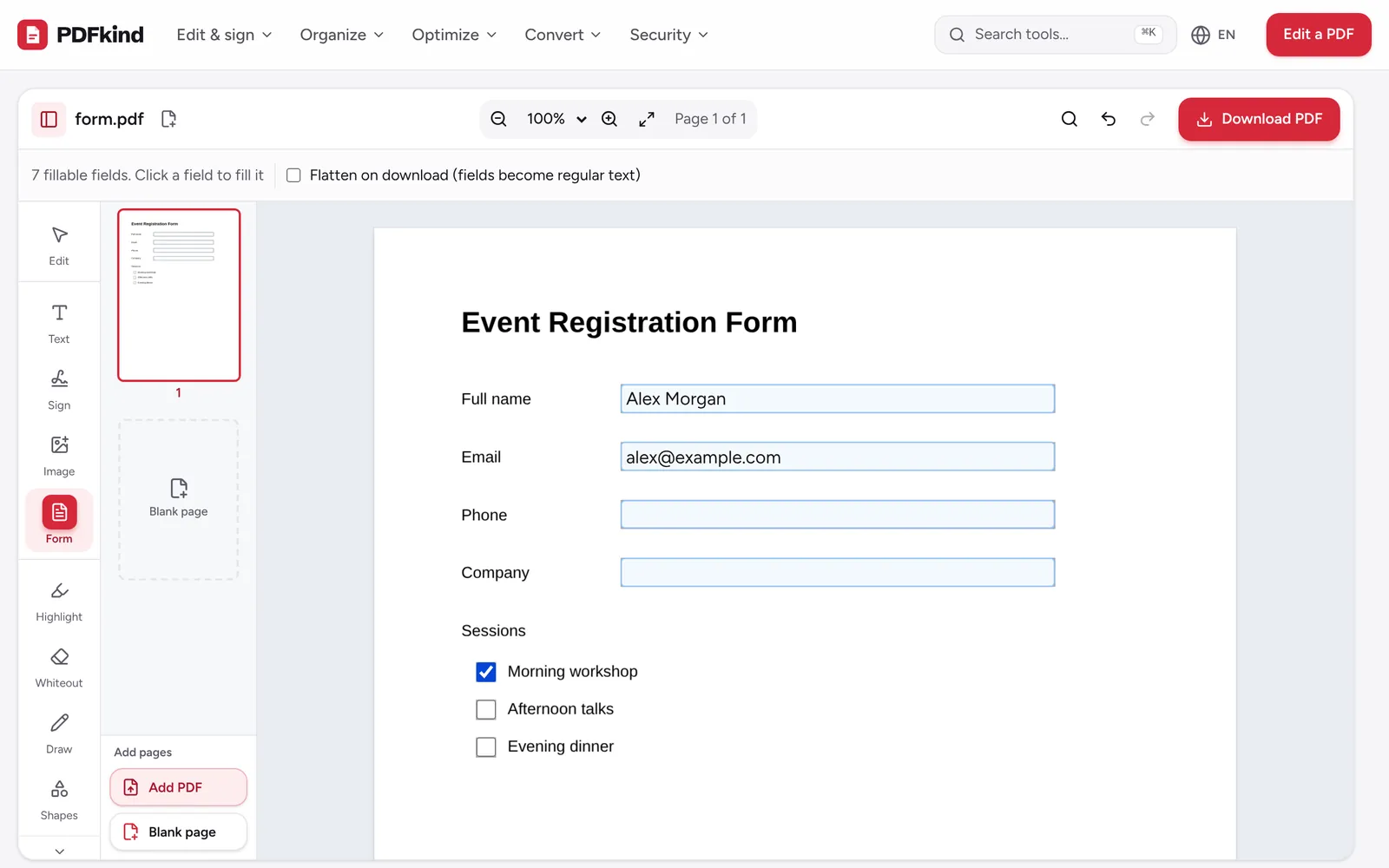
A fillable PDF form contains interactive fields: text boxes, checkboxes, radio buttons and dropdowns built into the file. You click a field and type, and the answer is stored in that field.
A flat (non-fillable) form is just a picture of a form: a scan, or a file exported without fields. There is nothing to click, so you fill it by placing text and check marks on top of the page. Both kinds can be completed with the Fill PDF form tool, and you will know which one you have as soon as you open it.
How to fill in a fillable PDF form
- 1
Open your form
Go to Fill PDF form and drop your PDF on the page, or click choose a file. The editor opens with the Form tool selected.
- 2
Check the field count
The bar above the page shows, for example, 12 fillable fields. Click a field to fill it. Fields are highlighted in light blue so you can see where to type.
- 3
Fill in the fields
Click a text field and type. Click checkboxes and radio buttons to select them, and pick an option from dropdowns. Fields marked read-only by the form’s author can’t be changed.
- 4
Add a signature if needed
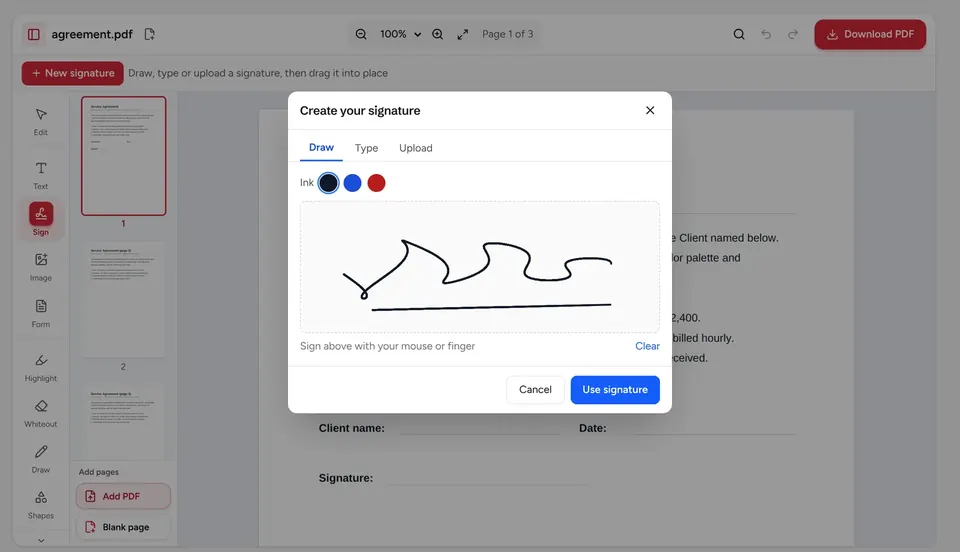
Choose Sign in the left tool rail, click New signature, then draw, type or upload it and click Use signature. Drag it onto the signature line and resize it.
- 5
Decide whether to flatten
Back in the Form tool, tick Flatten on download (fields become regular text) if the recipient should not be able to change your answers.
- 6
Download the completed form
Click Download PDF. The file is saved to your device with -edited added to its name.
How to fill out a PDF that has no fillable fields
If the form has no fields, the bar says This PDF has no fillable fields. Use Text or Symbols (✓) to fill it in anywhere on the page. That works on any PDF, including scanned paper forms.
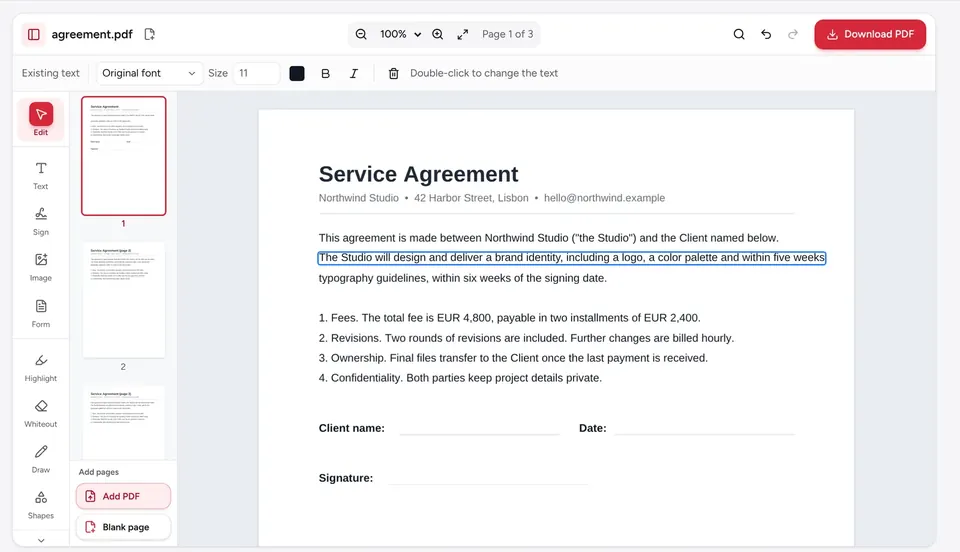
- To type an answer: choose Text in the tool rail and click on the line where the answer goes. Set the font, Size and Text color in the bar above the page, then drag the box to line it up.
- To tick a box: choose Stamp, switch to Symbols and pick Check mark or Cross. Click each box on the form to place it.
- To add today’s date: in Stamp, switch to Date, choose a Date format, then click where the date goes.
- To fix a mistake: select the item and press Delete, or click the Undo button in the top bar.
What flattening a PDF form does
Flattening turns form fields into regular page content. Your answers look the same, but nobody can click into the fields and change them, and they display identically in every PDF reader. Flatten when you are sending a final copy, for example to a bank or a government office.
Don’t flatten if someone else still needs to fill in their part, or if you want to edit your answers later. Keep an unflattened copy in that case. To flatten a form you already filled elsewhere, use Flatten PDF.
Filling forms on a phone or tablet
The same editor works in Safari on iPhone and iPad and in Chrome on Android. Tap a field to bring up the keyboard, and pinch or use the zoom controls to get closer to small boxes. Drawing a signature with your finger is often easier than with a mouse.
For signatures with more options, such as uploading a photo of your handwritten signature and removing its white background, see how to sign a PDF.
Frequently asked questions
Why can’t I click on the fields in my PDF form?+
The form is probably flat: it looks like a form but contains no interactive fields. The editor tells you so when you open the Form tool. Use Text to type answers and the Check mark symbol to tick boxes instead.
Can I fill out a scanned paper form?+
Yes. A scan has no fields, so treat it as a flat form: place text boxes on the lines and check marks in the boxes. Matching the font size to the printed text makes the result look neat.
Will the person I send it to see my answers?+
Yes. Field values are saved in the PDF and show in any reader. If you flatten on download, the answers become part of the page, which avoids readers that display fields differently.
Can I type in Arabic or other languages?+
Yes. The Text tool handles Arabic, Greek, Cyrillic and other scripts, and offers Arabic fonts. Choose a matching font in the bar above the page before you type.
Is my form uploaded to a server?+
No. The PDF is opened and filled in your browser and saved straight to your device. That matters for forms full of personal details, such as tax, visa or medical forms.
Ready to try it?
Open Fill PDF form and follow the steps above. Your file stays on your device.
- Files never leave your device
- Free, no signup, no watermark
- Works on any browser