Sign a PDF step by step
- 1
Open the PDF
Go to Sign PDF and drop your file on the page, or click choose a file. The editor opens with the Sign tool selected.
- 2
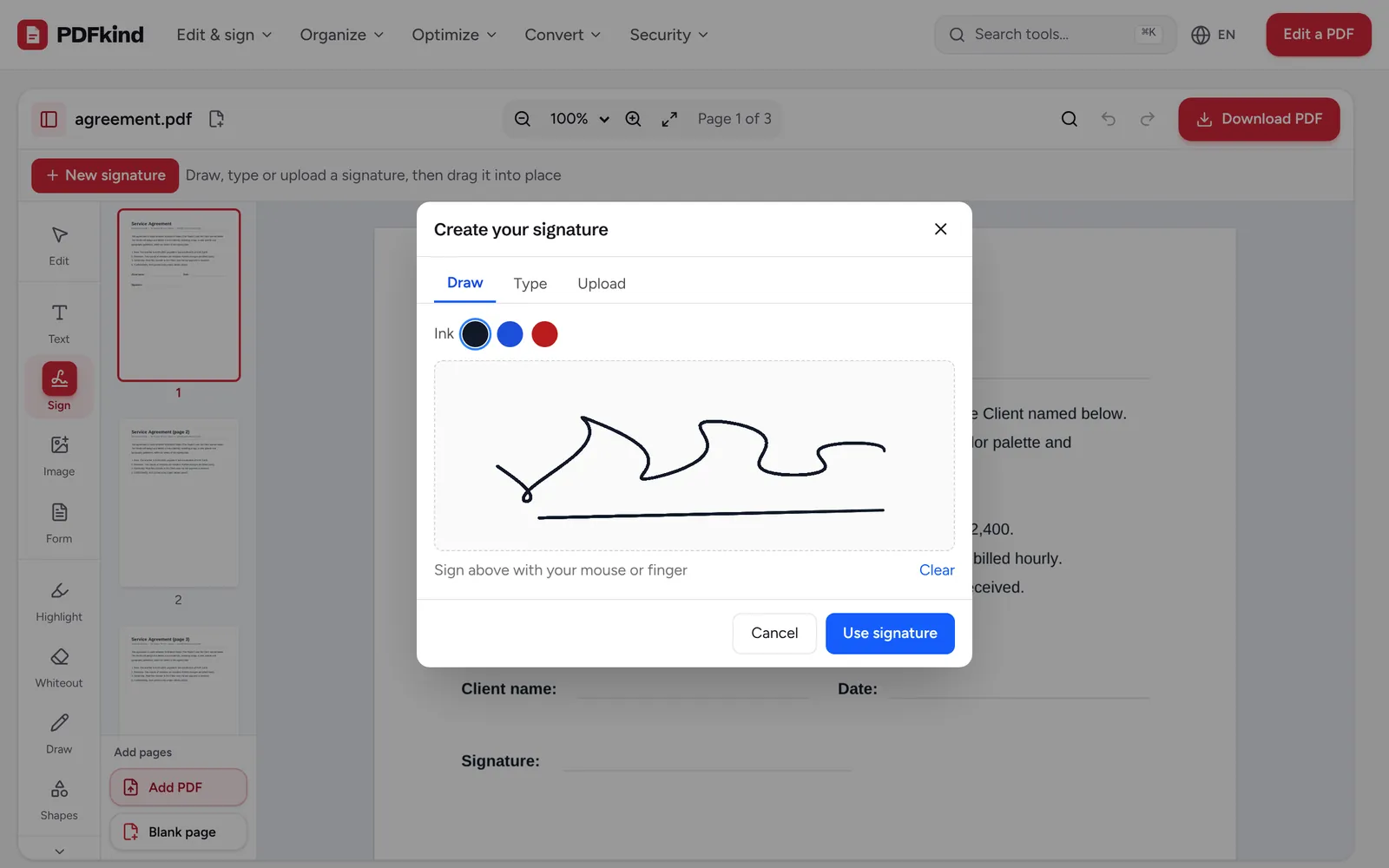
Create your signature
The Create your signature window opens. Choose the Draw, Type or Upload tab and pick an Ink color (black, blue or red) for drawn or typed signatures.
- 3
Confirm it
Click Use signature. The signature is placed on the current page and selected, ready to move.
- 4
Move and resize it
Drag the signature onto the signature line and pull a corner to make it the right size. Zoom in with Zoom in (Ctrl +) for precise placement.
- 5
Sign other pages if needed
Go to another page and click Sign in the tool rail. Your signature appears in the context bar above the page: click it (Place this signature) to add it again, or click New signature to create initials.
- 6
Download the signed PDF
Click Download PDF, check the name under File name, then click Download. The file is saved to your device.
Draw, type or upload: which signature to use
Draw gives the most personal result. Sign in the box with your mouse, trackpad or finger, and click Clear to try again. A finger on a phone screen usually looks more natural than a mouse.
Type is the fastest. Enter your name under Your name and pick one of the three handwriting styles shown below it. It is a good choice for initials or for forms where any clear signature will do.
Upload uses an image of your real signature. Sign on plain white paper with a dark pen, take a sharp photo or scan, and choose it under Choose an image of your signature (PNG, JPG). Keep Remove white background ticked so only the ink is placed on the page, not a white rectangle.
Sign a PDF on iPhone or Android
Open the Sign PDF page in Safari or Chrome. Tap choose a file and pick the PDF from Files, Downloads, or an email attachment you have saved. You do not need to install an app.
In the Draw tab, sign with your finger. Turning the phone sideways gives you a wider box and a steadier signature. Then drag the signature into place and pinch or use the zoom buttons to check its position.
When you tap Download, iPhone saves the file to the Downloads folder in the Files app (or offers to open or share it, depending on your iOS version). On Android it goes to the Downloads folder. From there you can attach it to an email or message.
Sign a PDF on Windows, Mac or Linux
On a computer, drag the PDF straight from your desktop or downloads folder onto the Sign PDF page. Any modern browser works: Chrome, Edge, Firefox or Safari.
A mouse signature can look shaky. If that bothers you, use Type, or upload a photo of your handwritten signature taken with your phone. A trackpad or drawing tablet also gives a smoother line than a mouse.
If the document also has fields to complete, pick Form in the tool rail to type into them before you sign. The guide on filling in a PDF form covers forms in more detail, including PDFs without fillable fields.
Is a signature added this way legally valid?
What you add here is an electronic signature: an image of your signature placed on the document. Many countries accept this for everyday documents such as rental agreements, job offers, consent forms and delivery notes.
Some documents require a certified digital signature, which uses a certificate to prove who signed and that the file was not changed afterwards. This tool does not create that kind of signature. If you are not sure, ask the person or organization that sent you the document what they accept.
Your PDF and your signature are processed in your browser and are never uploaded. Signing is free, with no account and no watermark on the downloaded file.
Frequently asked questions
How do I sign a PDF on my iPhone without an app?+
Open the Sign PDF page in Safari, tap choose a file and pick the PDF from the Files app. Draw your signature with your finger, drag it into place, then tap Download PDF and Download. The signed file is saved to Files, where you can share it.
Can I sign several pages or add initials?+
Yes. After you create a signature, click Sign in the tool rail on any page and it appears in the context bar, ready to place with one click. For initials, click New signature, use the Type tab with your initials, and place them on each page.
Why does my uploaded signature have a white box around it?+
The photo had a background that was not pure white, or Remove white background was unticked. Retake the photo in good light on plain white paper, keep the option ticked, and try again. A darker pen also helps the ink stand out.
Can other people change the document after I sign it?+
A signature image does not lock the file, so the recipient could still edit it with a PDF editor. If you need proof that nothing changed after signing, use a certified digital signature service. For basic protection, you can restrict editing with Protect PDF.
Is my signature saved for next time?+
Signatures you create stay available under the Sign tool while you work on your document. They are not stored on a server, so on a new visit you create the signature again, which takes a few seconds with Type or Draw.
Ready to try it?
Open Sign PDF and follow the steps above. Your file stays on your device.
- Files never leave your device
- Free, no signup, no watermark
- Works on any browser