Split, extract or delete: which one you need
Three tools cover different ways of cutting a PDF apart. Picking the right one saves steps.
- Split PDF turns one PDF into several files: by ranges you type, one file per page, or a new file every N pages.
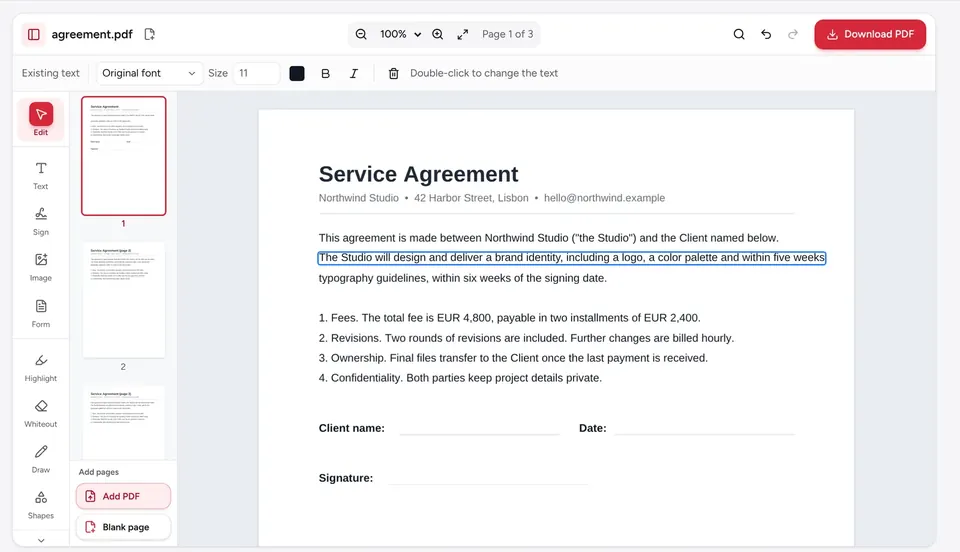
- Extract pages creates one new PDF from the pages you click, for example pages 3, 7 and 12 of a contract.
- Delete pages keeps the document and removes the pages you click, such as a blank back page or an outdated appendix.
All three run in your browser. The PDF is not uploaded, and the original file on your device is never changed: you always download a new copy.
Split a PDF into multiple files step by step
- 1
Open Split PDF
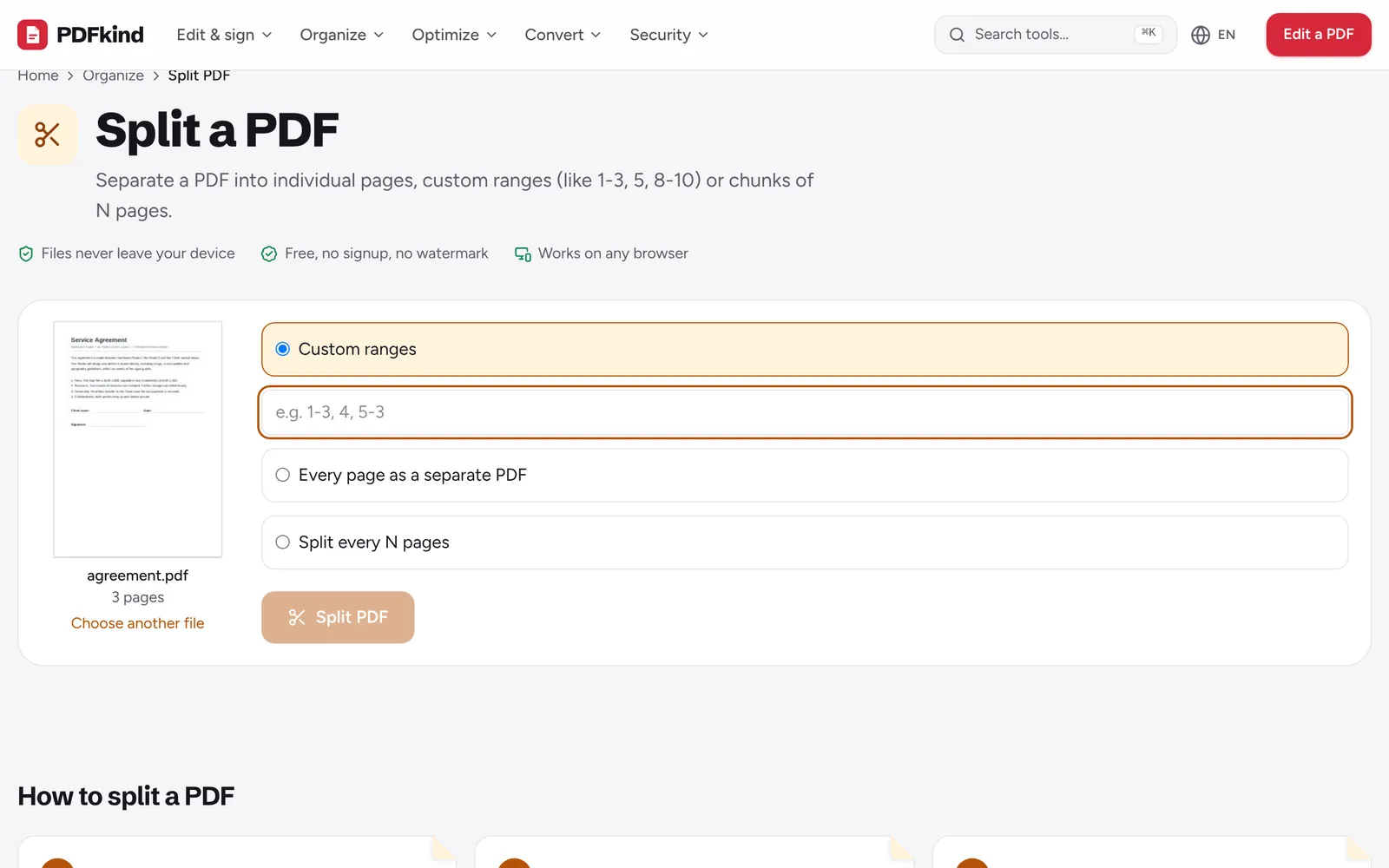
Go to Split PDF and click Choose a PDF or drop it here. You will see the first page and the total page count.
- 2
Pick a split mode
Choose Custom ranges, Every page as a separate PDF or Split every N pages.
- 3
Enter your ranges
For Custom ranges, type the page ranges separated by commas, such as 1-3, 4, 5-10. Each range becomes its own file.
- 4
Check the file count
Next to the button, the tool shows how many files you will get, for example 3 files (ZIP). Adjust the ranges if the number is not what you expect.
- 5
Split and download
Press Split PDF. When Your file is ready appears, press Download. Several files arrive together in one ZIP; a single range gives you a plain PDF.
Writing page ranges
- 1-3, 4-6, 7-9 makes three files of three pages each.
- 5 on its own makes a one-page file with page 5.
- 8- (a dash with no end) runs from page 8 to the last page.
- 10-1 gives the pages in reverse order, which helps with scans fed upside down.
Commas and semicolons both work as separators. If you type a page that does not exist, the tool tells you how many pages the PDF has instead of producing a broken file.
Split every N pages is the fastest way to cut a long scan into equal parts. Set Pages per file to 2 for double-sided forms, or to the length of each chapter. The last file holds whatever pages remain.
Extract specific pages into one new PDF
When you need a handful of pages in one file rather than many files, use Extract pages. Click the pages you want to keep, or type a Page range such as 1-3, 7 and press Select. Select all is there when you want most of the document.
Press Extract N pages to download one PDF with just those pages, in document order. Tick One file per page if you want each selected page as its own PDF instead (they come as a ZIP).
Delete pages instead of splitting
If the goal is a shorter version of the same document, Delete pages is quicker. Click the pages to remove (or select them with a page range), check the preview, then press Remove N pages. A PDF needs at least one page, so you cannot delete every page.
Scanned documents often contain empty sheets. Remove blank pages finds them for you and marks them for removal, with a sensitivity slider for pages that carry a little scanner noise.
Splitting a PDF on a phone
Every tool here works in Safari and Chrome on iPhone and Android. On a phone, pick the PDF from Files or your downloads. When you split into several files, your phone saves a ZIP: on iPhone, tap it in the Files app to unpack it, and on Android, most file manager apps open ZIP files directly. If you only need one part, a single range avoids the ZIP entirely.
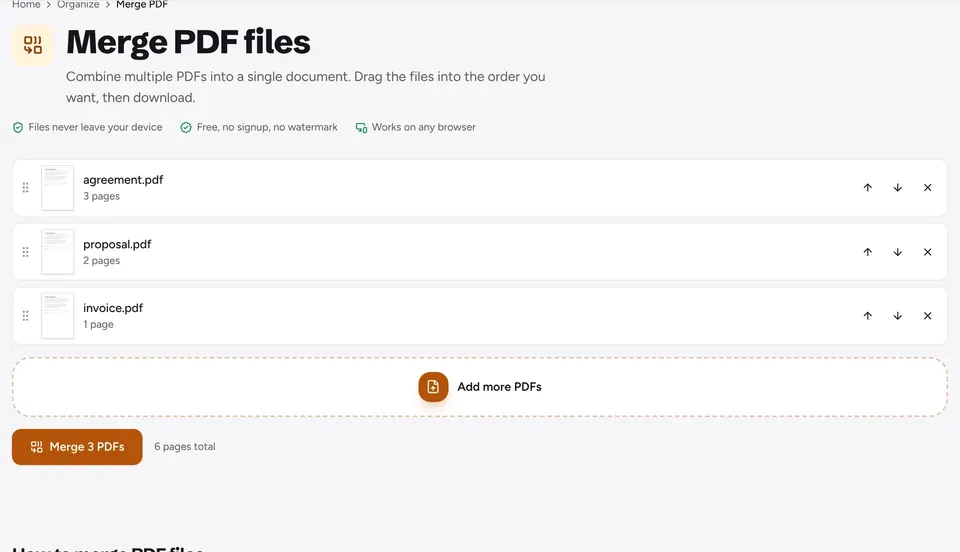
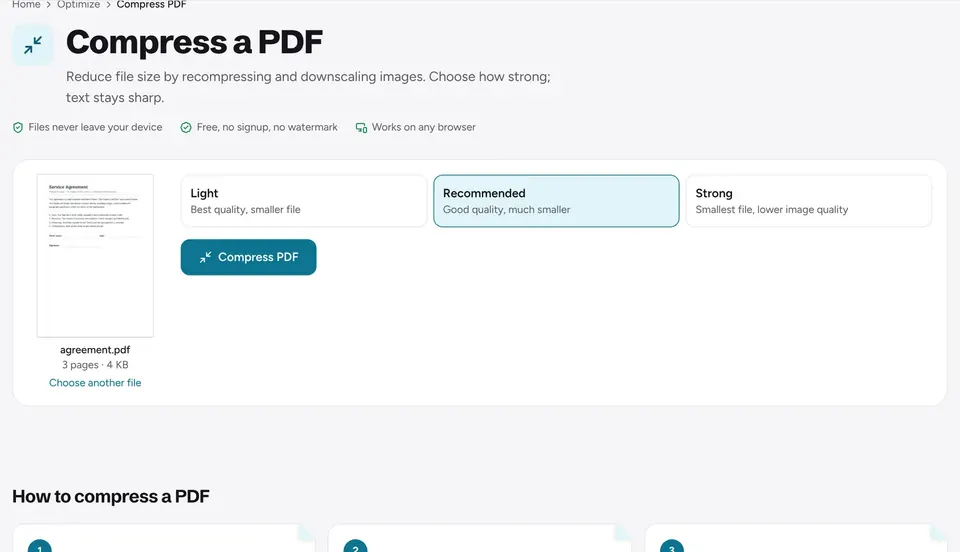
Once the parts are ready, you can shrink them with Compress PDF or put pages from different files together again; see how to merge PDFs.
Frequently asked questions
Does splitting reduce the quality of the pages?+
No. Pages are copied into the new files as they are, with their text, fonts and images untouched. Text stays selectable and searchable.
Why did I get a ZIP file instead of PDFs?+
When a split produces more than one file, they are bundled into a single ZIP so your browser downloads them in one go. Unzip it to get the individual PDFs. A split that produces one file downloads as a normal PDF.
Can I split several PDFs at once?+
Split PDF works on one file at a time. Split each file in turn, or combine them first with Merge PDF and then split the merged file by ranges.
Will the split files be smaller than the original?+
Usually, since each file holds fewer pages. Fonts and images shared across pages are copied into each part that uses them, so the parts together can add up to more than the original.
Is my PDF uploaded when I split it?+
No. The file is read and split in your browser, and the new files are created on your device. Nothing is sent to a server.
Ready to try it?
Open Split PDF and follow the steps above. Your file stays on your device.
- Files never leave your device
- Free, no signup, no watermark
- Works on any browser