The quick way to get under 1 MB
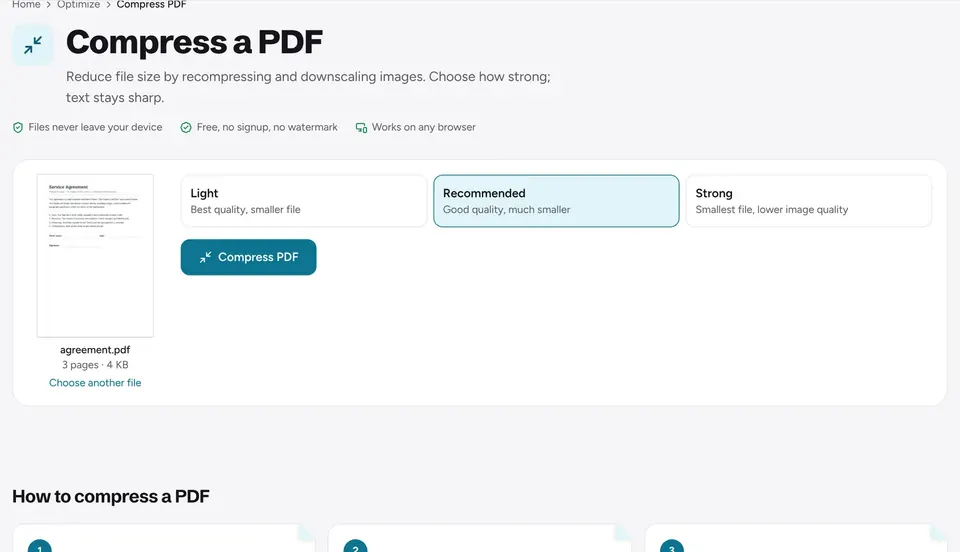
Open Compress PDF, add your file and compare the sizes shown for each level before you choose. Pick the Recommended level first. If the result is still above 1 MB, repeat with Strong on the original file. Your original is never changed, so you can try every level safely.
A text-only PDF is usually under 1 MB already. If yours is larger, the weight is almost always in images: scans, phone photos or screenshots. That is where compression saves the most.
Step by step
- 1
Check the size you need
Portals often say "1 MB" or "1,000 KB". Aim a little under, for example 900 KB, so a rounding difference does not reject the file.
- 2
Compress at Recommended
On Compress PDF, choose your file and pick Recommended. You see the size before and after.
- 3
Still too big? Use Strong
Go back to the original and choose Strong. Photos get softer but scanned text stays readable.
- 4
Check the result
Download the file, open it and zoom in on small print, signatures and stamps. If they are still readable, you are done.
If compression is not enough
Work through these in order. Each one removes a different kind of weight.
- Turn color scans into grayscale. Grayscale PDF removes color data, which often halves a scan that is only text and a stamp.
- Resize oversized pages. Pages scanned at A3 or a custom large size carry far more pixels than needed. Resize PDF to A4 or Letter, then compress again.
- Delete pages you do not need. Blank backs, cover sheets and duplicate pages add up. Delete pages first, then compress.
- Re-scan or re-save images at a lower resolution. 150 to 200 DPI is enough for reading and for most forms. Scans at 600 DPI are far sharper than a screen shows.
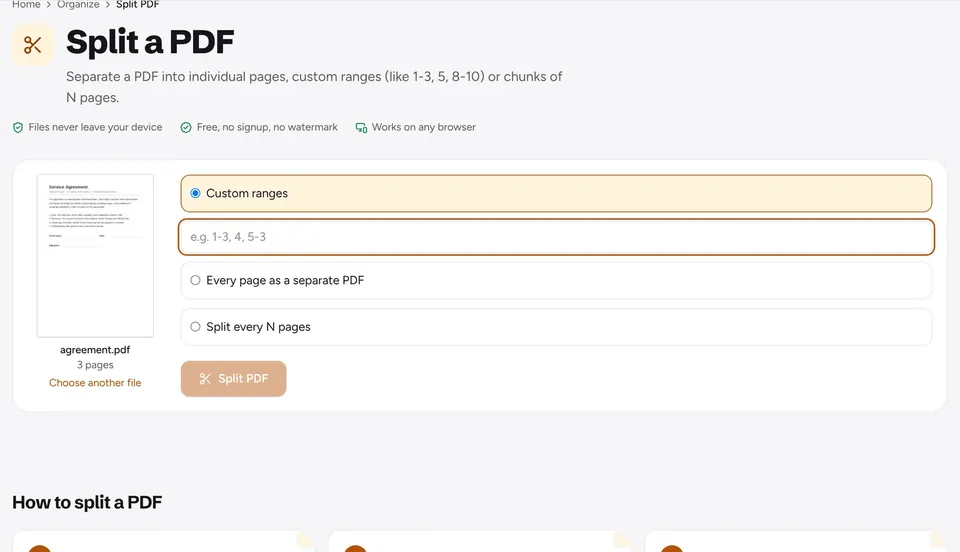
- Split the file. If the portal accepts several files, split the PDF into parts, each under the limit.
Keeping quality while you shrink
Compression recompresses images and removes duplicate data, so text and vector graphics stay sharp. What you trade away is image detail. Use Light or Recommended for documents you will print, and Strong only when a limit forces it.
Before sending, zoom to 200 percent on the smallest text, a signature and any photo that matters. If one of them looks too soft, go one level up and combine it with the grayscale or resize steps above instead of compressing harder.
Your file is processed in your browser and is never uploaded, which matters for ID copies, contracts and medical papers.
Frequently asked questions
Why is my PDF still over 1 MB after compressing?+
It probably holds large color scans or very high resolution photos. Try Strong, convert to grayscale, resize the pages to A4, or delete pages you do not need.
Will the text still be sharp?+
Yes. Compression targets images. Text and vector graphics keep their quality, though text inside a scanned image is a picture and softens slightly at Strong.
Can I reduce a PDF to an exact size such as 500 KB?+
Not to an exact number, but you see the size for each level before you pick, and the steps above get most files under a fixed limit.
Does it work on a phone?+
Yes. It runs in Safari and Chrome on iPhone and Android, with the same levels.
Is the compressed PDF uploaded anywhere?+
No. Everything runs in your browser and the file never leaves your device.
Ready to try it?
Open Compress PDF and follow the steps above. Your file stays on your device.
- Files never leave your device
- Free, no signup, no watermark
- Works on any browser