Covering text is not the same as removing it
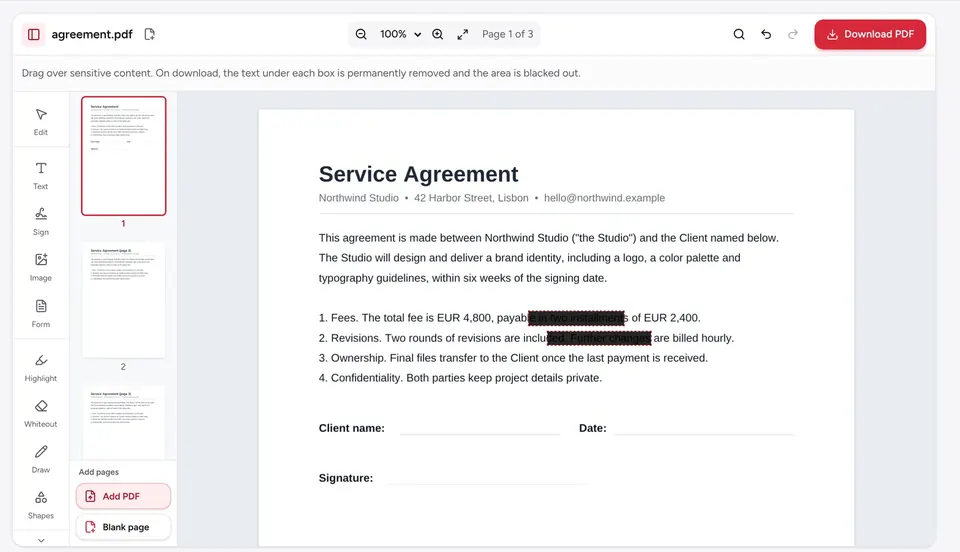
Many tools hide text by drawing a white or black box on top of it. The words are still in the file underneath, so anyone can select, copy or search them, or open the PDF in another program and lift the box away. That has caused real leaks of names, salaries and account numbers.
The PDFkind tools below remove what is under the box from the file itself. After you download, the covered words cannot be selected, copied or found by search.
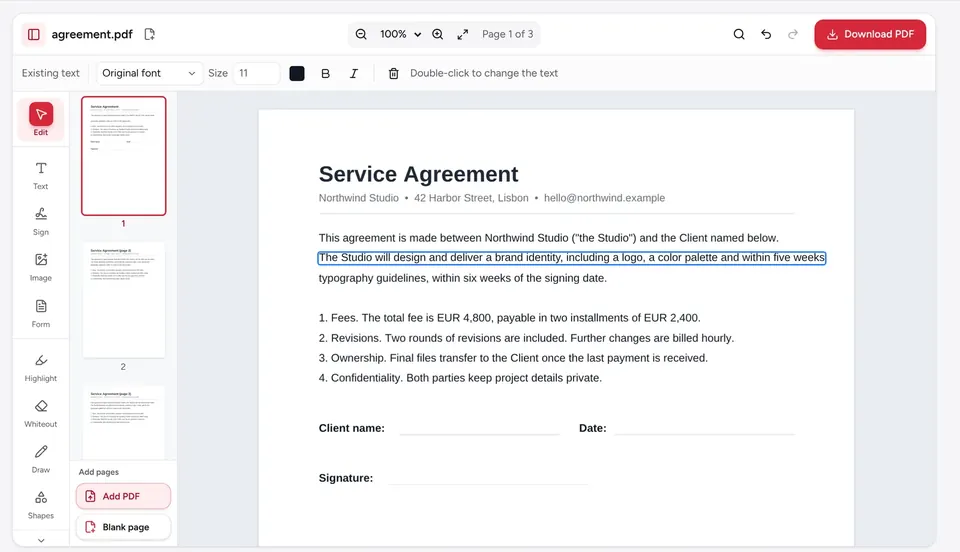
- Delete text: remove a word, a line or a paragraph, and the rest of the line closes up. Best for fixing a document.
- Whiteout: erase text, pictures or marks and leave a clean page you can write over. Best for corrections and scans.
- Redact: leave a black box that shows something was removed on purpose. Best for legal and official documents.
Delete text from a PDF step by step
- 1
Open the PDF
Go to Delete text from PDF and choose your file. Nothing is uploaded.
- 2
Click the text
Click the line you want to change. To remove a whole line or paragraph, press Delete or use the trash button in the bar above the page.
- 3
Remove words inside a paragraph
Click Edit paragraph, then delete the words. The lines reflow like in a word processor, and the remaining text keeps its font and place.
- 4
Download
Click Download PDF. The text is removed from the file itself.
White out or black out instead
Use Whiteout when you want a clean gap, for example to erase an old price and type a new one. The box matches the page color, and you can pick any color for backgrounds that are not white. It works on text and on pictures and marks.
Use Redact when the reader should see that something was removed: legal filings, contracts you share, anything official. The text and image pixels under each black box are deleted from the file. Our guide on redacting a PDF covers it in detail.
Removing text from a scanned PDF
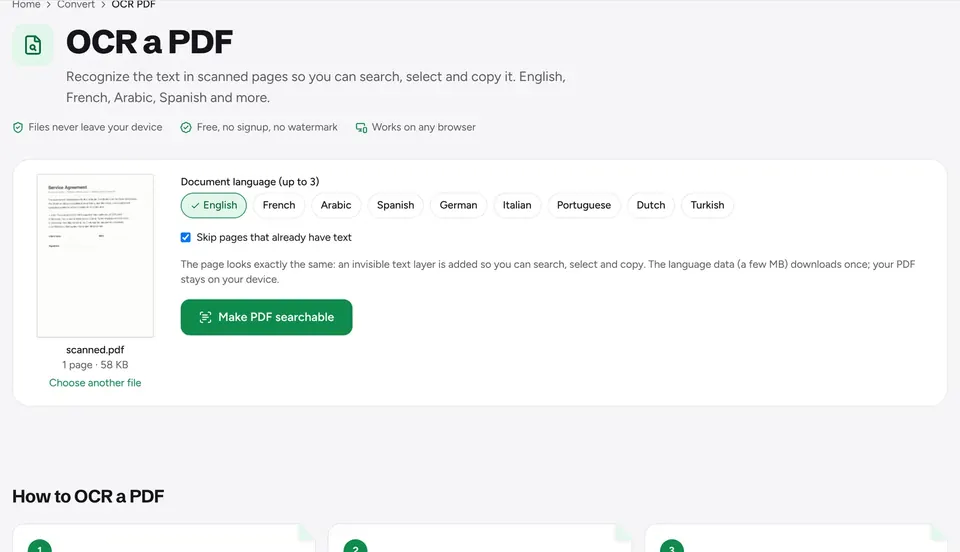
A scan has no real text, only a picture of it, so there are no words to select. Use Whiteout to erase the part of the picture, or turn on Make scanned text editable when you open the file in the editor. Our guide on editing a scanned PDF explains both.
Also check the document properties: names can hide in the metadata, such as the author field. Remove PDF metadata clears it.
Frequently asked questions
How do I remove text from a PDF for free?+
Open Delete text from PDF, click the text, press Delete and download. It is free, with no signup or watermark.
Is the deleted text really removed from the file?+
Yes. The text is removed from the PDF itself, so it cannot be selected, copied or found by search, unlike tools that put a white box on top.
What is the difference between whiteout and redact?+
Both remove what is underneath. Whiteout blends in with the page so you can write over it. Redaction leaves a black box, the usual sign that something was removed on purpose.
Can I remove text from a scanned PDF?+
Yes, with Whiteout, which paints over the picture. For editable text, run OCR first.
Is my PDF uploaded anywhere?+
No. The file is processed in your browser and never leaves your device.
Ready to try it?
Open Delete text from PDF and follow the steps above. Your file stays on your device.
- Files never leave your device
- Free, no signup, no watermark
- Works on any browser