The attachment limits you are up against
- Gmail: 25 MB per email. Above that, Gmail offers to send a Google Drive link instead of the file.
- Outlook.com and Hotmail: 20 MB per email. Larger files are offered as a OneDrive link.
- Yahoo Mail: 25 MB per email.
- Work email (Outlook with Microsoft 365, Exchange): often 20 to 35 MB, set by your company. The person receiving the email may have a lower limit than you.
Two details catch people out. The limit covers every attachment in the message together, and files grow by about a third when they are encoded for sending. A 19 MB PDF can fail in Outlook for that reason alone, so aim for well under the limit, for example 15 MB for Gmail and 12 MB for Outlook.
Way 1: shrink the PDF to a size that fits
This is the fastest fix and keeps the email simple: one attachment, no link to open.
- 1
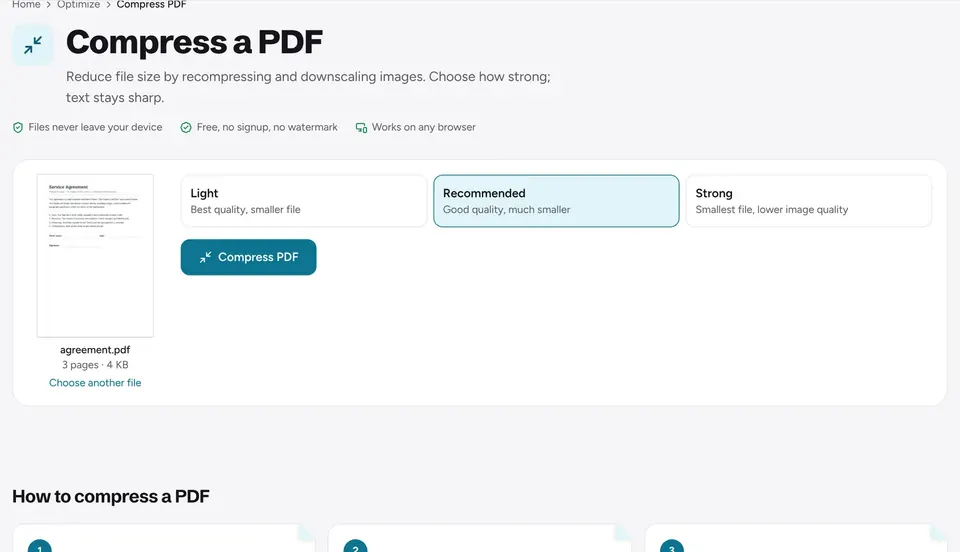
Open the compressor
Go to Compress PDF. It runs in your browser, so the file is never uploaded.
- 2
Add your PDF
Choose the file or drop it on the page.
- 3
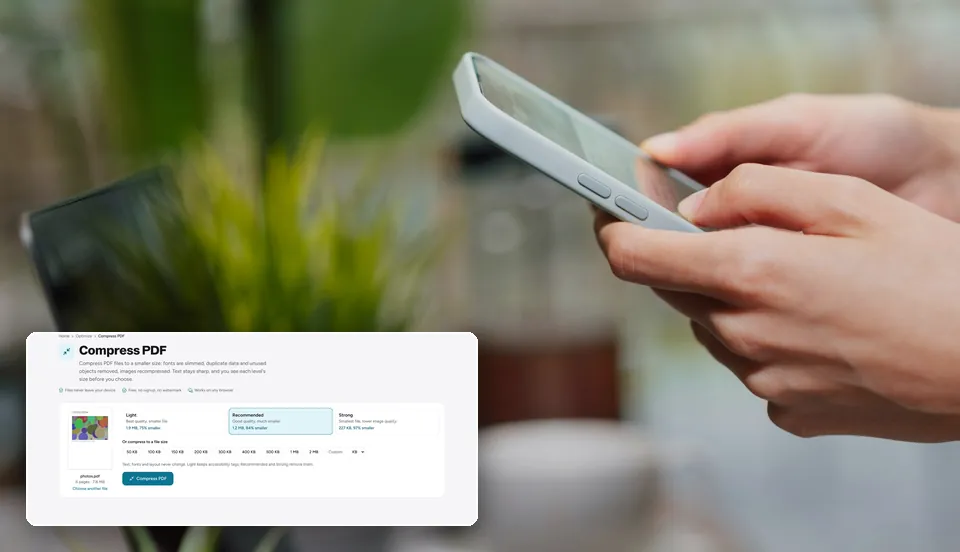
Pick a target size
Under Or compress to a file size, choose 2 MB, or enter your own, for example 12 MB for Outlook. The tool shrinks the images only as much as needed to fit, so you keep the best quality that still fits.
- 4
Download and attach
Download the result and attach it to your email. Its size is shown before you download.
Way 2: send it in parts
When a document is mostly scanned pages or large photos, it may not shrink enough without becoming hard to read. Splitting keeps full quality.
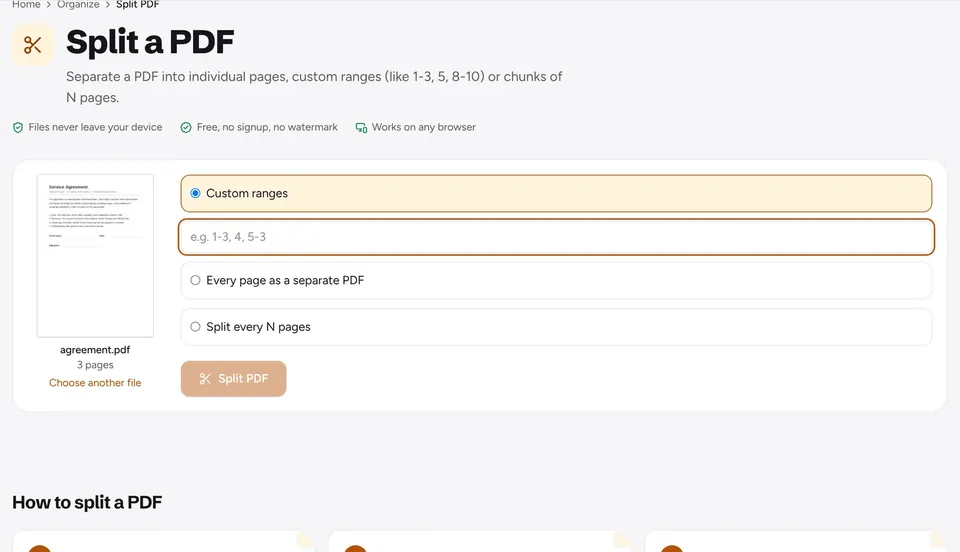
- Use Split PDF to cut the file by page ranges, for example pages 1 to 20 and 21 to 40, or every 10 pages.
- Send each part in its own email, and number them in the subject line: "Contract (1 of 2)".
- The guide on splitting a PDF shows every option.
Way 3: remove what the reader does not need
Many large PDFs carry pages nobody will read: blank backs of scanned sheets, cover pages, duplicated annexes. Removing them saves size without touching quality.
- Delete pages you do not need, or remove blank pages automatically.
- For scans that are only text and a stamp, convert to grayscale. Color data is often half the file.
- Then compress what is left. See why a PDF gets so big for what takes the space.
Way 4: send a link instead of the file
For very large files, such as a 200-page scanned file or a design portfolio, a link is the most reliable way. Upload the PDF to Google Drive, OneDrive, Dropbox or iCloud Drive and share the link in your email. On a Mac or iPhone, Apple Mail can do this for you with Mail Drop for attachments up to 5 GB.
Which way to choose
- Up to about 2 times over the limit: compress to a target size. Nothing else needed.
- Mostly scanned pages: grayscale, then compress. Split if it is still too big.
- Print-quality documents you do not want softened: split into parts.
- Hundreds of megabytes: send a link.
Frequently asked questions
What is the maximum PDF size I can email?+
Gmail and Yahoo accept 25 MB per email, Outlook.com 20 MB. Because attachments grow by about a third when sent, a PDF should be clearly under those numbers: around 15 MB for Gmail and 12 MB for Outlook.
Why does Outlook reject my 19 MB PDF?+
Outlook counts the encoded size of all attachments together, which is roughly a third larger than the files on your computer. Compress the PDF to 12 MB or less, or split it.
Will compressing make the PDF hard to read?+
Text and drawings stay sharp because only images are re-saved. Scanned pages are images, so check small print after compressing. With a target size, the tool keeps the highest quality that fits.
Can I compress a PDF on my phone before emailing it?+
Yes. Open Compress PDF in Safari or Chrome, pick the file, choose a size, and the smaller copy is saved to your Downloads, ready to attach.
Is my PDF uploaded when I compress it?+
No. The file is processed in your browser on your own device and never leaves it.
Ready to try it?
Open Compress PDF and follow the steps above. Your file stays on your device.
- Files never leave your device
- Free, no signup, no watermark
- Works on any browser