What a normal PDF weighs
- Text only, 1 to 20 pages: 50 KB to 500 KB.
- Text with a logo and a few charts: 200 KB to 2 MB.
- Scanned document, one page: 100 KB in grayscale at 200 DPI, up to 5 MB in color at 600 DPI.
- Photo of a document taken with a phone: 2 to 6 MB per page.
If your file is far above these, the causes below explain where the space went.
The 7 usual causes
1. Scans at high resolution or in color. A scanner set to 600 DPI color stores about 33 million pixels per A4 page. For reading and most forms, 200 to 300 DPI is plenty. Fix: compress the PDF, and if the scan is only text and a stamp, convert it to grayscale first.
2. Phone photos placed as pages. A modern phone photo is 12 to 48 megapixels, far more than a page needs. Fix: compress at Recommended, which resizes images to a sensible resolution while keeping text readable.
3. Images exported at print quality. Design apps and some word processors keep every picture at full resolution. Fix: compress, or export again with a "smallest file size" or "web" preset in the app that made the PDF.
4. Fonts embedded in full. Some apps include the whole font, several megabytes for Asian or Arabic fonts, instead of only the letters used. Fix: compression keeps your text but removes duplicate and unused font data where it can.
5. The same image repeated on every page. A letterhead or background image saved separately on each page multiplies its size by the page count. Fix: compression merges identical images into one shared copy.
6. Hidden content. Old versions kept after repeated "Save" in some editors, attachments, form data, comments and metadata all add weight you cannot see. Fix: compression rewrites the file cleanly. Remove annotations or remove metadata if you also want them gone.
7. Pages nobody needs. Blank backs of double-sided scans, cover sheets and annexes add up quickly. Fix: remove blank pages or delete pages before compressing.
How to tell which cause it is
- 1
Look at the size per page
Divide the file size by the number of pages. Over 1 MB per page almost always means scans or photos.
- 2
Zoom in
If the text is sharp at 400 percent, it is real text. If it gets blurry or blocky, the page is an image, and compression will help a lot.
- 3
Try a compression level
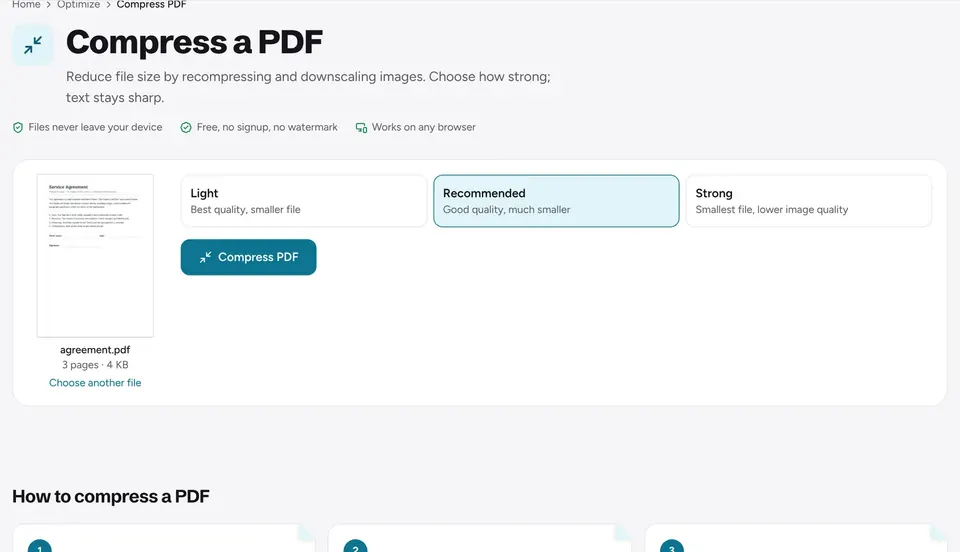
Open Compress PDF and add the file. Each level shows the size it would produce before you choose, so you see right away how much can be saved.
Make smaller PDFs from the start
- Scan documents at 200 or 300 DPI, in grayscale unless color matters.
- When you turn photos into a PDF, set a File size in JPG to PDF and the photos are shrunk to fit. See how to turn photos into a PDF.
- In Word or Google Docs, choose the standard or "minimum size" export, not "high quality print".
- Compress once at the end, after merging and editing, rather than at every step.
For a step-by-step on shrinking a file to fit an email or a portal, see how to reduce PDF file size.
Frequently asked questions
Why is a 2-page PDF 20 MB?+
Almost always because the pages are photos or color scans at high resolution. Compressing at Recommended usually brings such a file under 1 or 2 MB with readable text.
Why did my PDF get bigger after editing?+
Some editors append each change to the end of the file instead of rewriting it, and some embed a whole font for one edited word. Compressing the edited file rewrites it cleanly.
Does compressing remove anything?+
Images are re-saved at a lower resolution and quality, and duplicate or hidden data is cleaned up. Text, links and form fields stay.
Why does my PDF not get smaller at all?+
It probably has no large images left: its size is text, fonts or vector drawings. Delete pages you do not need or split it into parts.
Ready to try it?
Open Compress PDF and follow the steps above. Your file stays on your device.
- Files never leave your device
- Free, no signup, no watermark
- Works on any browser